Watchers
Watchers let you capture specific DMX or OSC values and show them in custom columns in Wireshark’s packet list. Each column shows the value carried by matching packets, making it easier to track changes to a specific DMX channel, OSC value or part of an OSC address across packets.
Quick Start
- Open an existing capture file or start a new capture and leave it running.
- Go to Tools > 1 ShowShark Tools > 2 Watchers.
- Click Add DMX Watcher or Add OSC Watcher.
- Click Apply to save the watcher configuration.
- Follow Setting Up Columns to add the watcher field, such as
show.watcher.1, to Wireshark’s packet list. - View the watcher values in the packet list.
Watchers Window
The Watchers window shows each watcher slot and its custom column field, such as show.watcher.1. Unused slots are left blank.
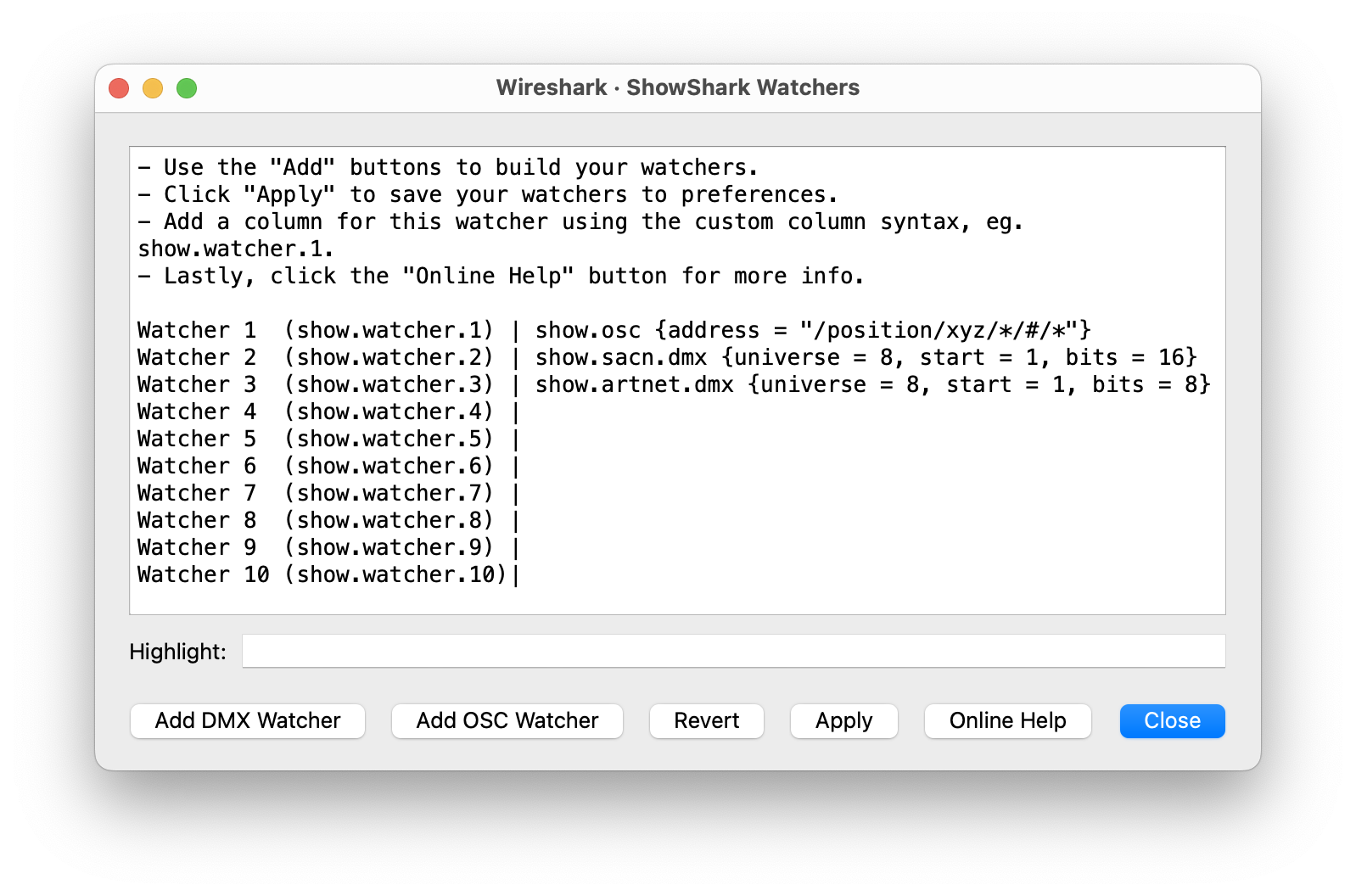
Applying Changes
- Apply: Saves the watcher settings.
- Adding, removing or changing the type of a watcher may require a plugin reload. ShowShark prompts you when needed.
- Revert: Restores the last applied watcher settings.
Adding a DMX Watcher
Click Add DMX Watcher and fill in the DMX value you want to track.
| Field | Description |
|---|---|
| Protocol | Choose Any, sACN, or Art-Net. Any matches the same universe and channel across both supported DMX protocols. |
| Universe Number | The universe to watch. |
| Start Address | The DMX channel to watch, from 1 to 512. |
| Bits | Use 8 or 16. 16-bit combines two consecutive DMX channels into one value. If left blank, ShowShark uses 8-bit. |
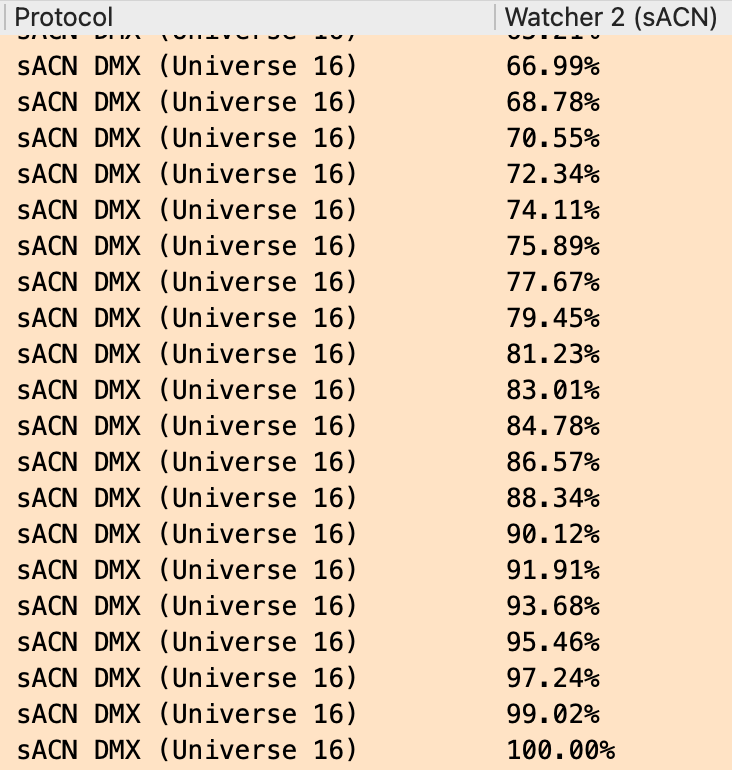
The format used for displayed DMX values, such as Percent, Decimal, or Hex, follows the DMX Display setting under Tools > 4 ShowShark Options > 4 DMX Display.
Example: sACN universe = 8, start = 1, bits = 16
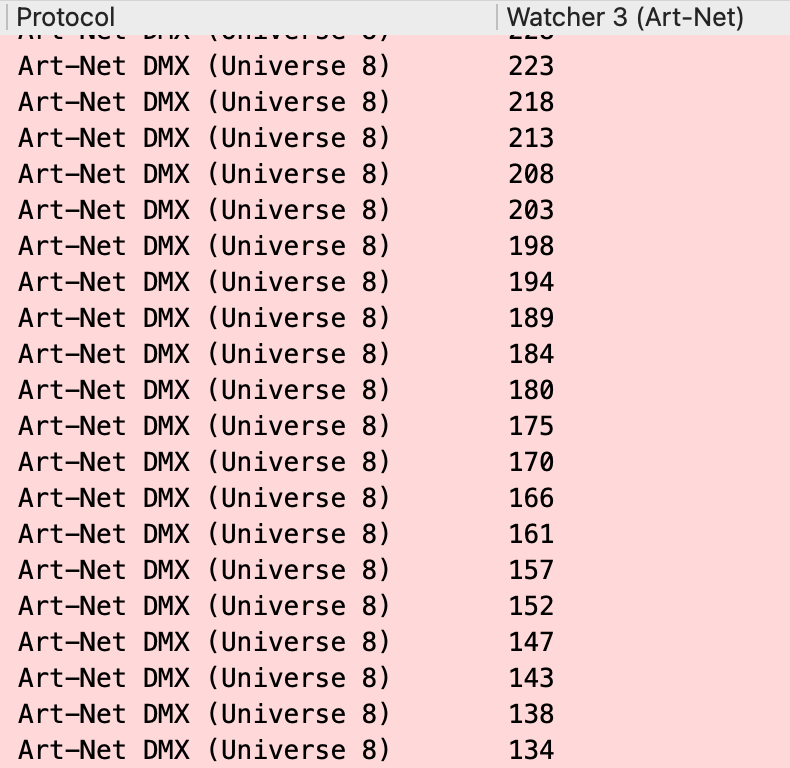
Example: Art-Net universe = 8, start = 1, bits = 8
Adding an OSC Watcher
Click Add OSC Watcher and enter an OSC address pattern. OSC watchers use two special characters:
*matches any text at that position.#marks the part of the address whose value you want to watch.
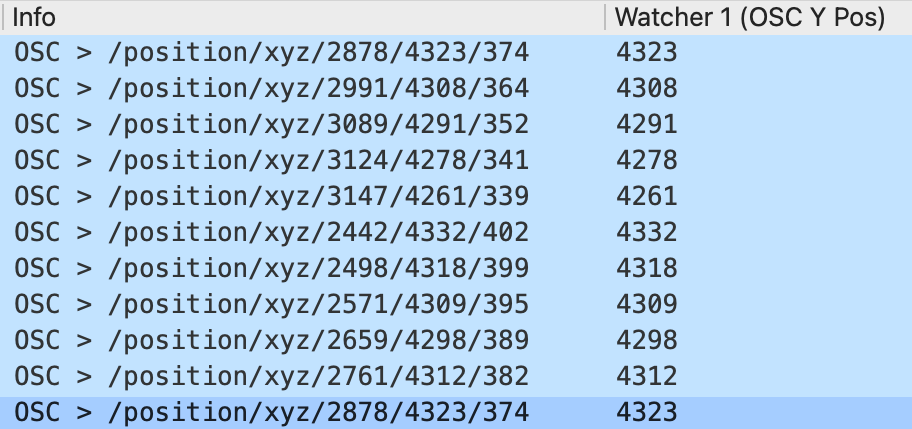
For example, /position/xyz/*/#/* watches the value at the second-to-last segment of any matching address.
OSC values are shown as their raw value.
Example: address = “/position/xyz//#/”
Setting Up Columns
Use Configure Columns to add a custom column for each watcher. Set Type to Custom and enter the field shown in the Watchers window, such as show.watcher.1. The column remains blank for packets that do not match the watcher.