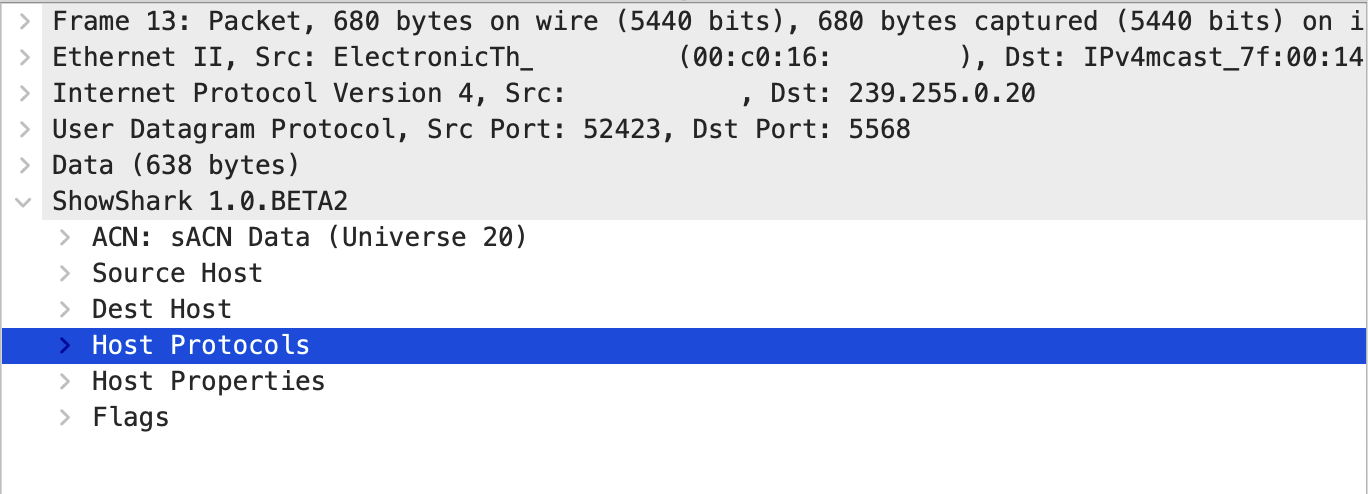
Host Table
Host Table builds a list of devices found in the capture and shows what ShowShark has identified about each one, including hostnames, addresses, manufacturers and protocols.
Host Discovery
ShowShark tracks hosts by their MAC address and adds information found in captured packets from entertainment and general network protocols. ShowShark fills in more details about each host as it sees more traffic.
Host Information
The following information can appear in both the Host Table window and packet details.
| Field | Description |
|---|---|
| ID | Row number in the current Host Table. |
| Hostname | Device hostname. |
| IP Address | Current IP address. |
| MAC Address | Hardware address. |
| Manufacturer | Device manufacturer. |
| MAC Manufacturer | Manufacturer from MAC OUI lookup. |
| Derived Manufacturer | Manufacturer derived from entertainment protocols. |
| Assumed Manufacturer | Manufacturer assumed from packet data. |
| Device Type | Device type, usually derived from supported protocol data. |
| Additional Hostnames | Other hostnames associated with the device. |
Viewing the Host Table
Host information appears in two places:
- Host Table window: Shows discovered hosts in a dedicated window. Open it from Tools > 1 ShowShark Tools > 1 Host Table.
- Packet details: Shows host information in the selected packet’s details tree.
Use the Host Table window for an overview of the network, and packet details when examining individual packets.
Open an existing capture file or start a new capture and leave it running. Host Table fills as ShowShark processes packets. You can also use the example capture included with the ShowShark download.
Host Table data persists when you stop and restart captures, so you can capture in stages and the table remains intact.
Host Table Window
The Host Table window shows all discovered hosts in a single table and updates as ShowShark processes packets.
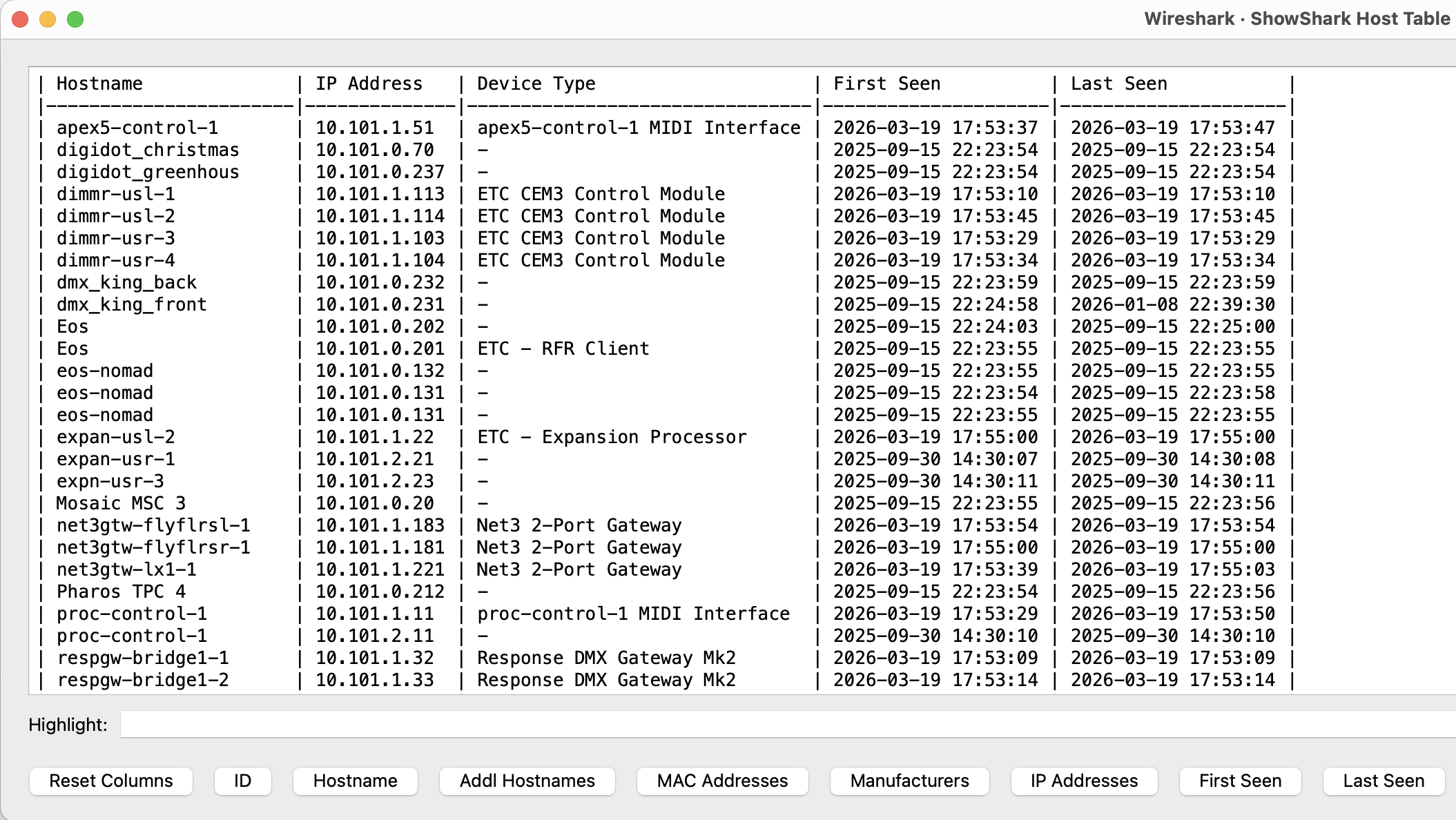
Use the controls along the bottom of the Host Table window to show and hide columns.
| Control | Description |
|---|---|
| Reset Columns | Restores the default visible columns. |
| Seen Date | Shows or hides the date in the First Seen and Last Seen columns. |
| Export CSV | Exports the Host Table to a CSV file. |
| Clear Discovered Hosts | Clears all hosts discovered in the current Wireshark session. |
The table can become wide with all columns visible. Stretch the window or use the toggle buttons to show only what you need.
Host Information in Packet Details
The packet details pane shows the same host information as the Host Table window, split into Host Properties and Host Protocols tables. You can show or hide either table in ShowShark Options.