Configure Columns
ShowShark includes additional columns in Wireshark’s packet list for entertainment-specific information such as hostnames and universe numbers.
You can choose which packet information is shown and arrange the columns in the order that works for you.
The ShowShark Configuration Profile includes a default column layout to get you started. You can customise it later.
Modify Columns
Use Wireshark’s Column Preferences to add, remove, and reorder columns.
-
Right-click any column heading in the packet list and select Column Preferences.
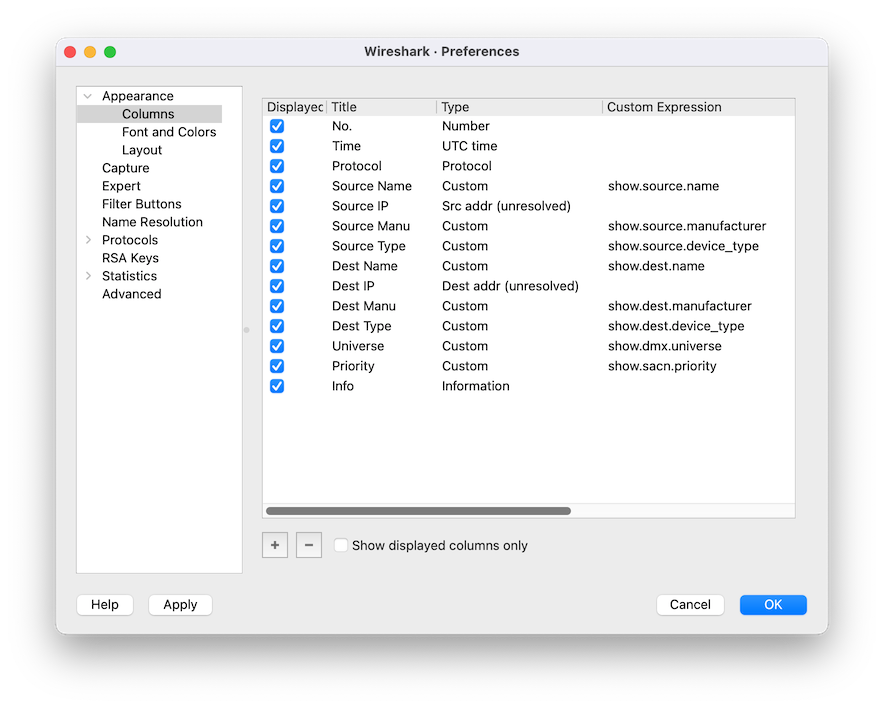
- Use + to add a column or – to remove the selected column.
- Choose the column type:
- For a standard Wireshark column, choose the relevant Type, such as Source for the source IP address.
- For a ShowShark column, set Type to Custom and enter its field name, such as
show.source.namefor Source Name.
- Use Up and Down to reorder the columns.
- Click OK to apply your changes.
ShowShark Column Examples
Set Type to Custom, then enter a ShowShark field name in the Fields box:
- Source Name:
show.source.name - Destination Name:
show.dest.name - Universe:
show.dmx.universe - Watcher 1:
show.watcher.1 - Watcher 2:
show.watcher.2
Watcher columns keep selected DMX or OSC values visible while you move through packets. See Watchers to configure them.