Installation
Follow these steps to install ShowShark and enable it in Wireshark.
Install Wireshark
Download and install the latest version of Wireshark. Follow the Wireshark installation instructions for your system; on Windows, the installer will guide you through any required additional components.
Download ShowShark
Download the latest version of ShowShark from the Download page, then unzip it. The archive contains the ShowShark Lua plugin and an example capture file.
Open Wireshark
On first run, Wireshark may prompt you to allow access to network interfaces. Grant permission as needed to enable packet capturing.
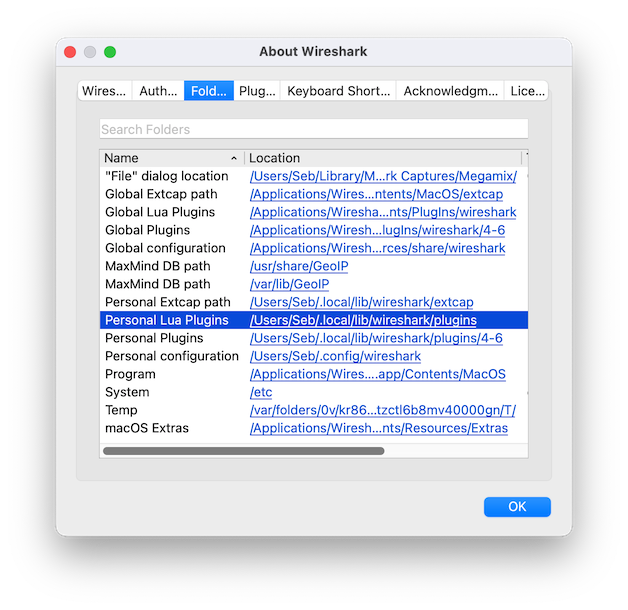
Find the Plugin Folder
- Open About Wireshark:
- macOS: Wireshark > About Wireshark
- Windows and Linux: Help > About Wireshark
- Select Folders.
- Find Personal Lua Plugins.
Copy the Plugin File
- Double-click the Personal Lua Plugins path to open the folder. If it does not exist, allow Wireshark to create it.
- Remove any earlier ShowShark plugin files or folders.
- Copy the ShowShark Lua plugin file—for example,
ShowShark_v1_0.lua—from the unzipped download into the Personal Lua Plugins folder.
Enable the Plugin
- In Wireshark, select Analyze > Reload Lua Plugins, or restart Wireshark.
- The ShowShark About dialog should appear, confirming that the plugin has loaded. You should also see several menus containing “ShowShark” under Tools.
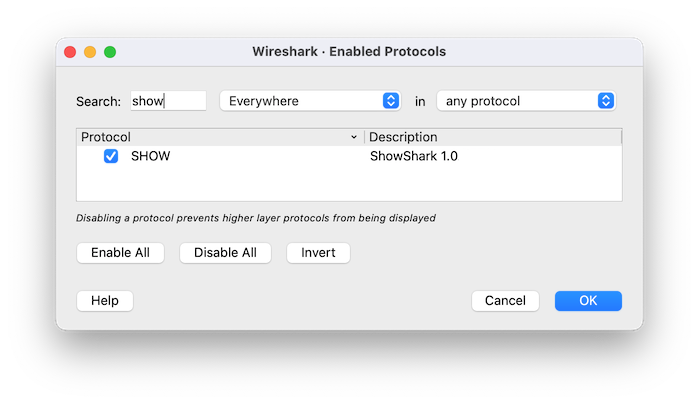
- Go to Analyze > Enabled Protocols.
- Search for
SHOWand select its checkbox. - Click OK.