ShowSquid Advanced Mode
What Advanced Mode Is For
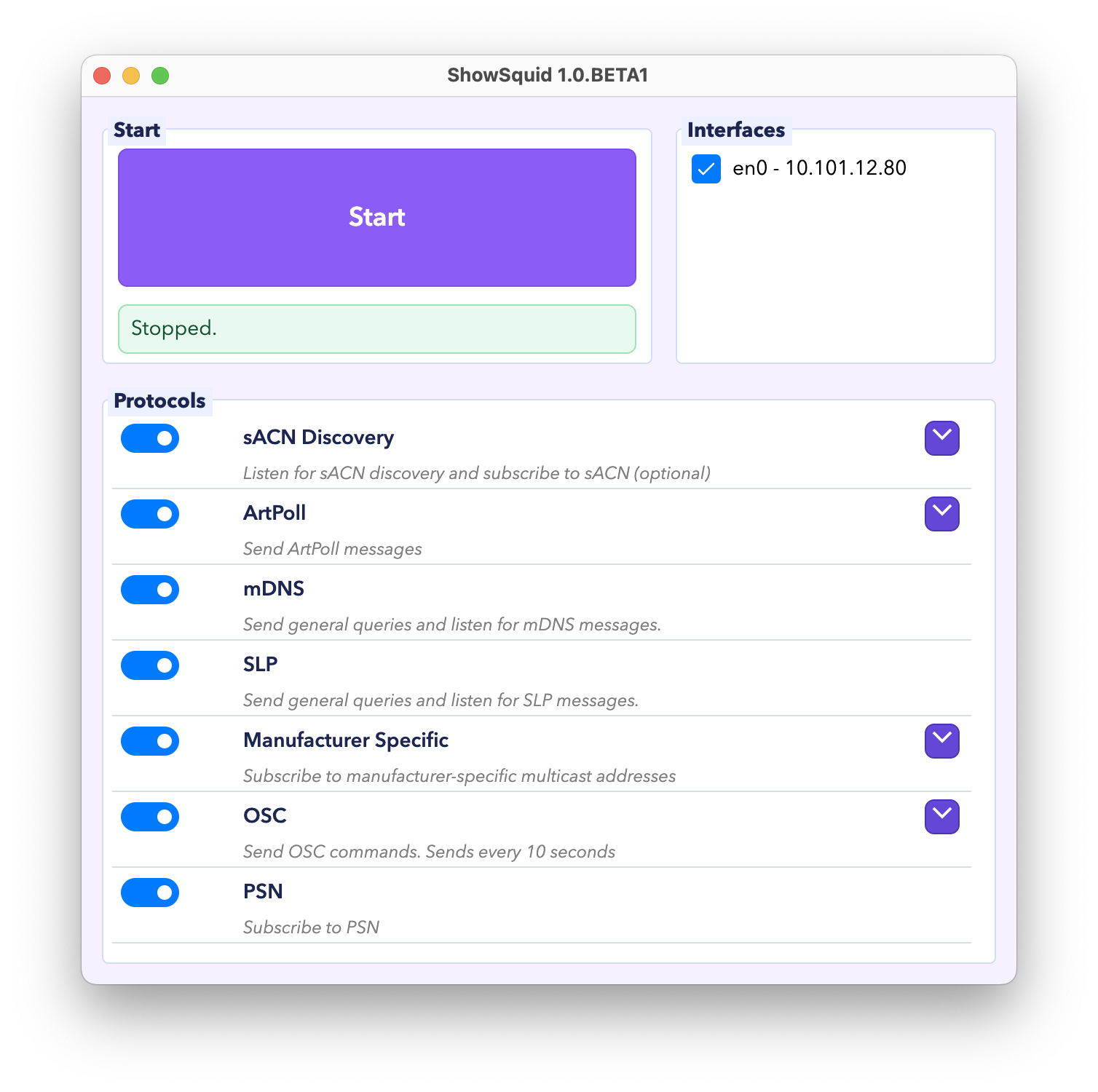
Advanced mode shows every supported protocol and its available settings, giving you more control over what ShowSquid sends and listens for.
Getting Started
- Open ShowSquid.
- Go to View > Level and select Advanced.
- Select one or more network interfaces.
- Enable the protocol groups you need.
- Expand any protocol that needs additional configuration and enter the required options.
- Click Start.
- Watch the activity indicators and log, and look for new traffic in Wireshark.
- Click Stop when finished.
While Running
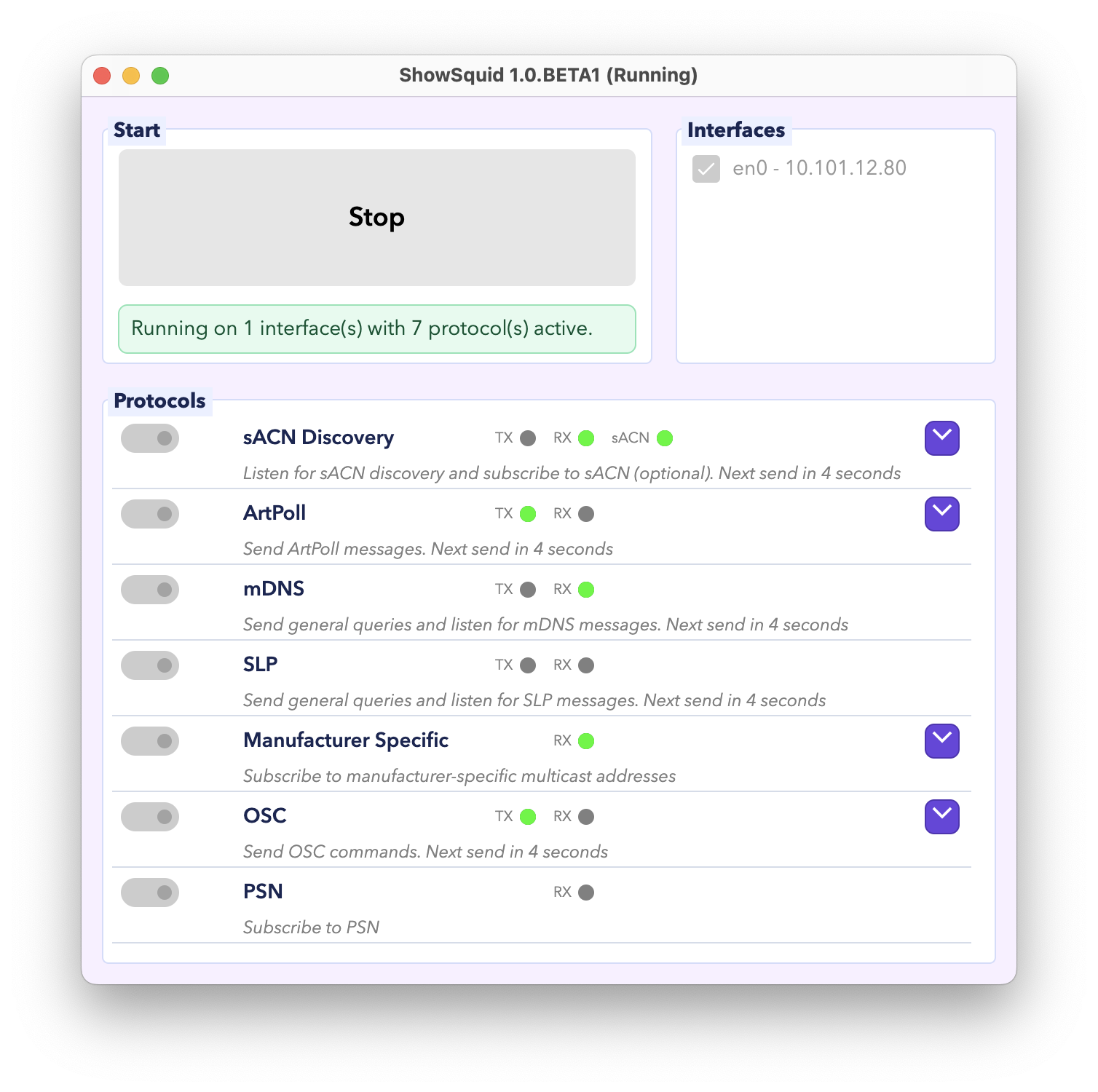
When ShowSquid is running, the protocol controls are locked. The TX and RX indicators show transmitted and received traffic, while the status text shows when the next message is due to be sent.
Additional Protocols and Options
sACN Options
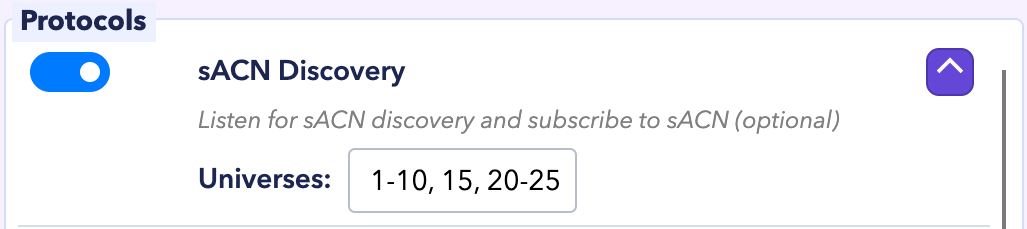
Expand sACN Discovery to enter individual universes, comma-separated lists, or numeric ranges. ShowSquid joins the corresponding multicast groups so their packets can be captured in Wireshark.
ArtPoll Options
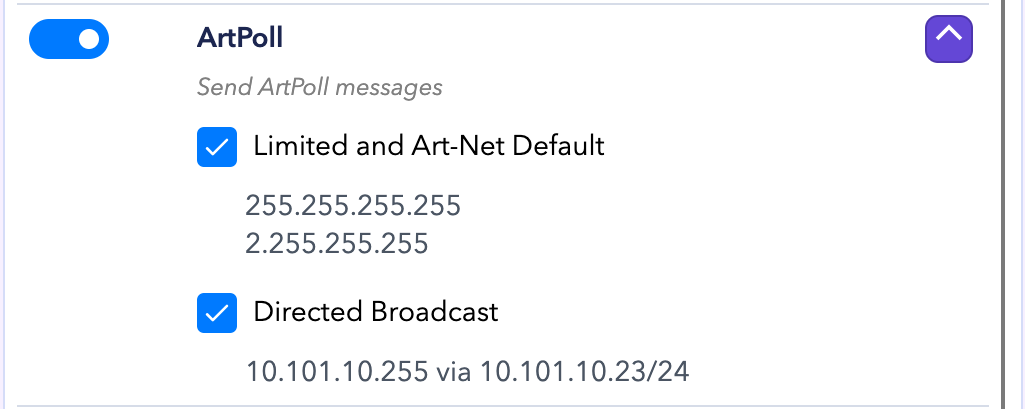
Expand ArtPoll to choose how ShowSquid broadcasts ArtPoll messages. Limited and Art-Net Default sends to 255.255.255.255 and 2.255.255.255. Directed Broadcast sends to the broadcast address calculated for each selected interface.
mDNS
- Sends mDNS queries and listens for announcements and replies.
SLP
- Sends SLP service requests and listens for replies.
OSC Broadcast
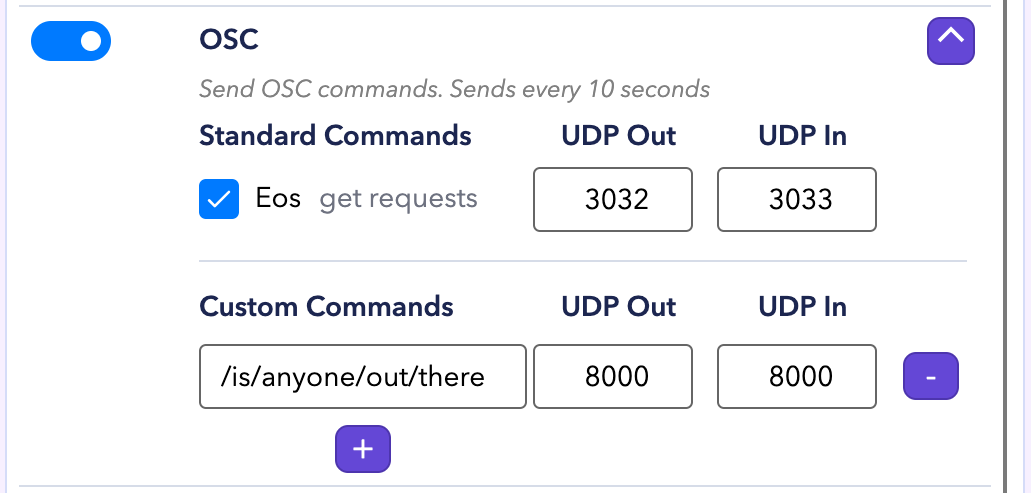
Expand OSC Broadcast to enable predefined commands for supported manufacturers or add your own OSC commands.
Messages are sent to the broadcast address of each selected interface’s subnet. UDP Out sets the destination port for each command, while UDP In sets the port ShowSquid listens on for incoming messages. Enabled commands are sent every 10 seconds.
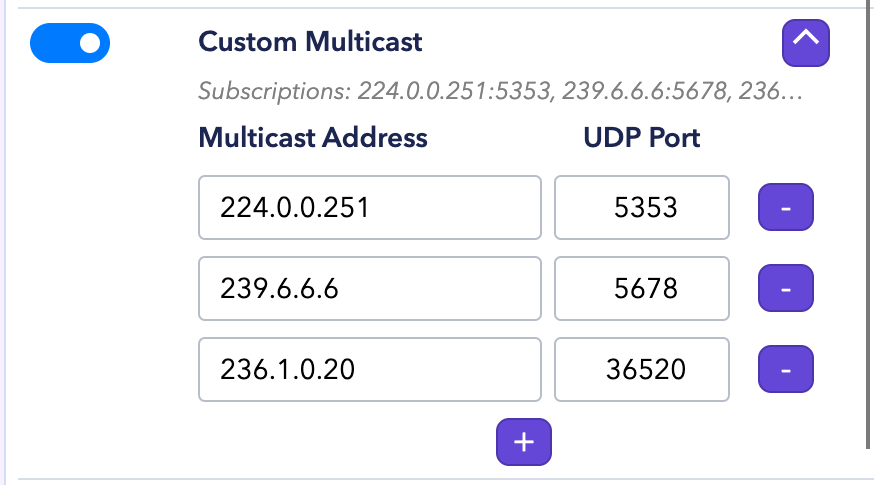
Custom Multicast
Expand Custom Multicast to add multicast subscriptions that are not covered by the built in protocol options. ShowSquid joins each subscription on every selected interface but does not send any traffic.