Filter Builder
Wireshark display filters allow you to show only the packets you want to see and hide the rest, but building them can be cumbersome and requires you to remember the filter syntax.
ShowShark’s Filter Builder allows you to create custom filters for hosts, manufacturers, protocols and Watchers without requiring you to write the syntax by hand.
Getting Started
- Start a new capture, open an existing capture, or use the example capture included with the ShowShark download.
- Open the Filter Builder from Tools > 2 ShowShark Filter Builder.
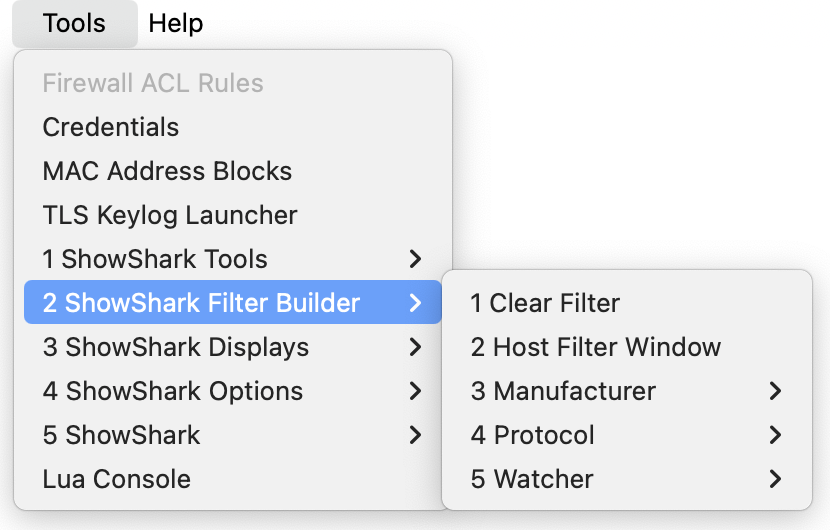
- Clear Filter: Removes the current display filter.
- Host Filter Window: Opens the Host Filter Window for building filters using hostnames, IP addresses and MAC addresses.
- Manufacturer: Adds a filter for a selected manufacturer.
- Protocol: Adds a filter for a selected protocol.
- Watcher: Adds a filter for configured Watchers.
Combining Filters
- Filters from different categories are combined using and.
- Multiple selections within the same category are combined using or.
Filters may take longer to apply to large captures.
Host Filters
Host Filter Window builds filters using source and destination host information.
Build host filters using:
You can specify criteria for source hosts, destination hosts, or both:
- Within the same field, multiple values are combined using or
- Between different fields (source vs. destination), filters are combined using and
Hostname Filtering
The filter matches any hostname containing the text you enter. Matching is case-sensitive, and you can separate multiple entries with commas.
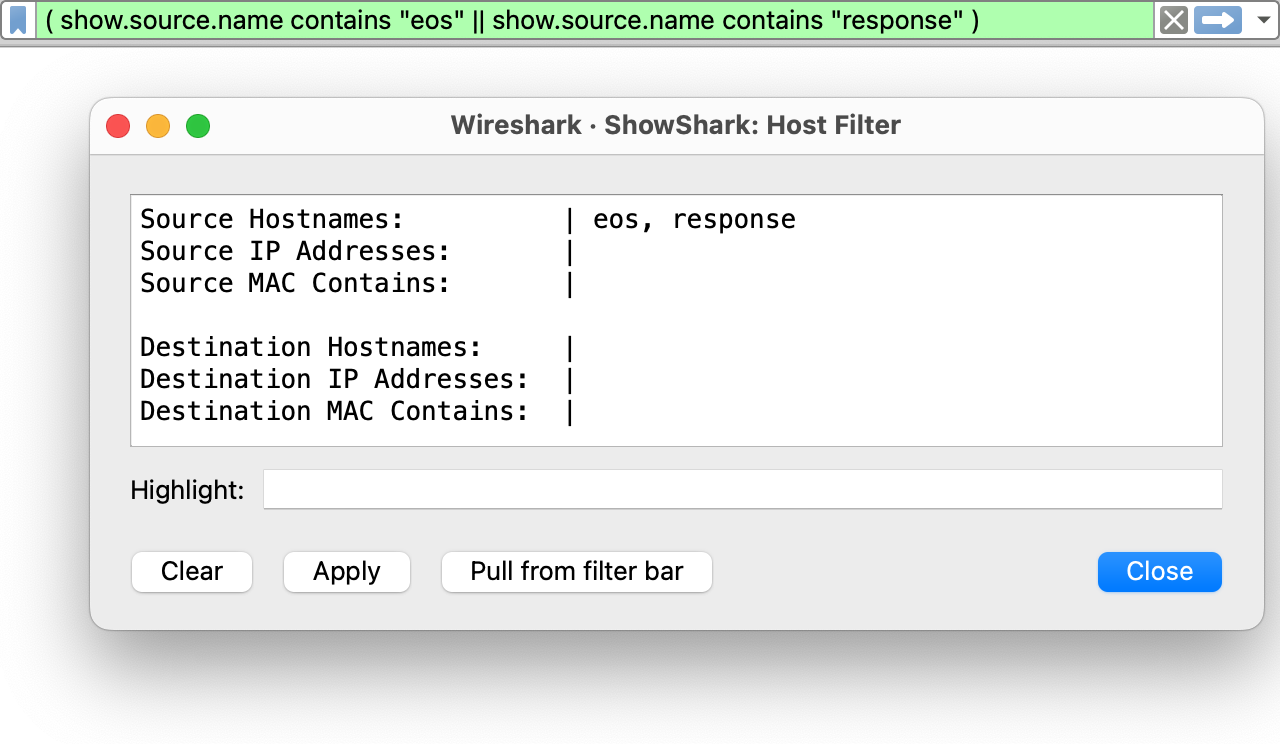
IP Address Filtering
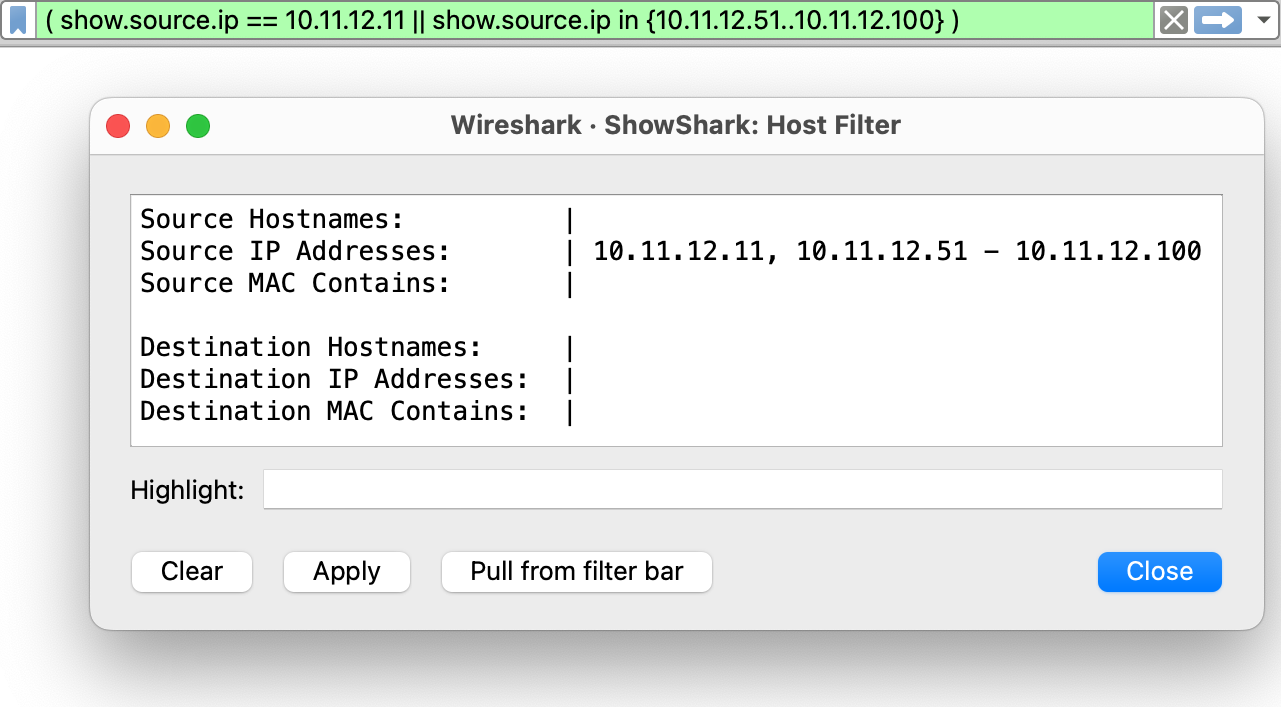
You can filter by a single IP address, a range or multiple addresses.
Single IP address:
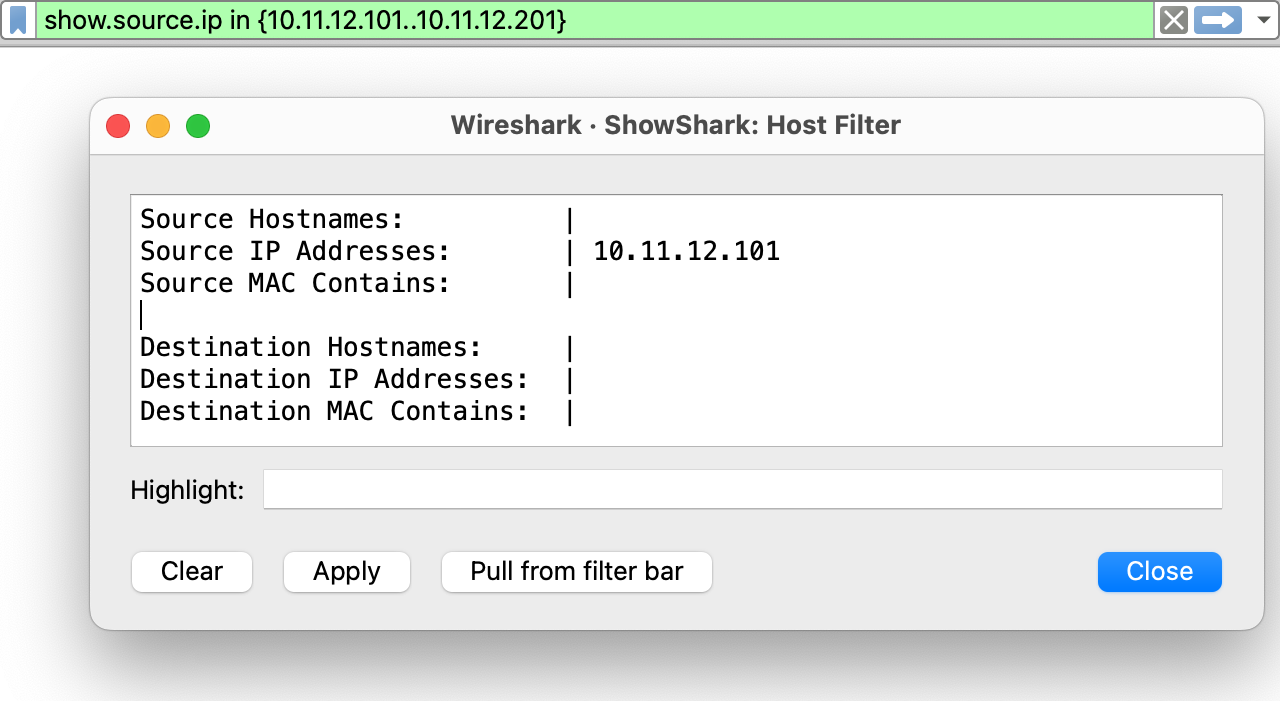
IP address range:
Enter the first and last address in the range, for example 10.101.10.6–10.101.10.9.
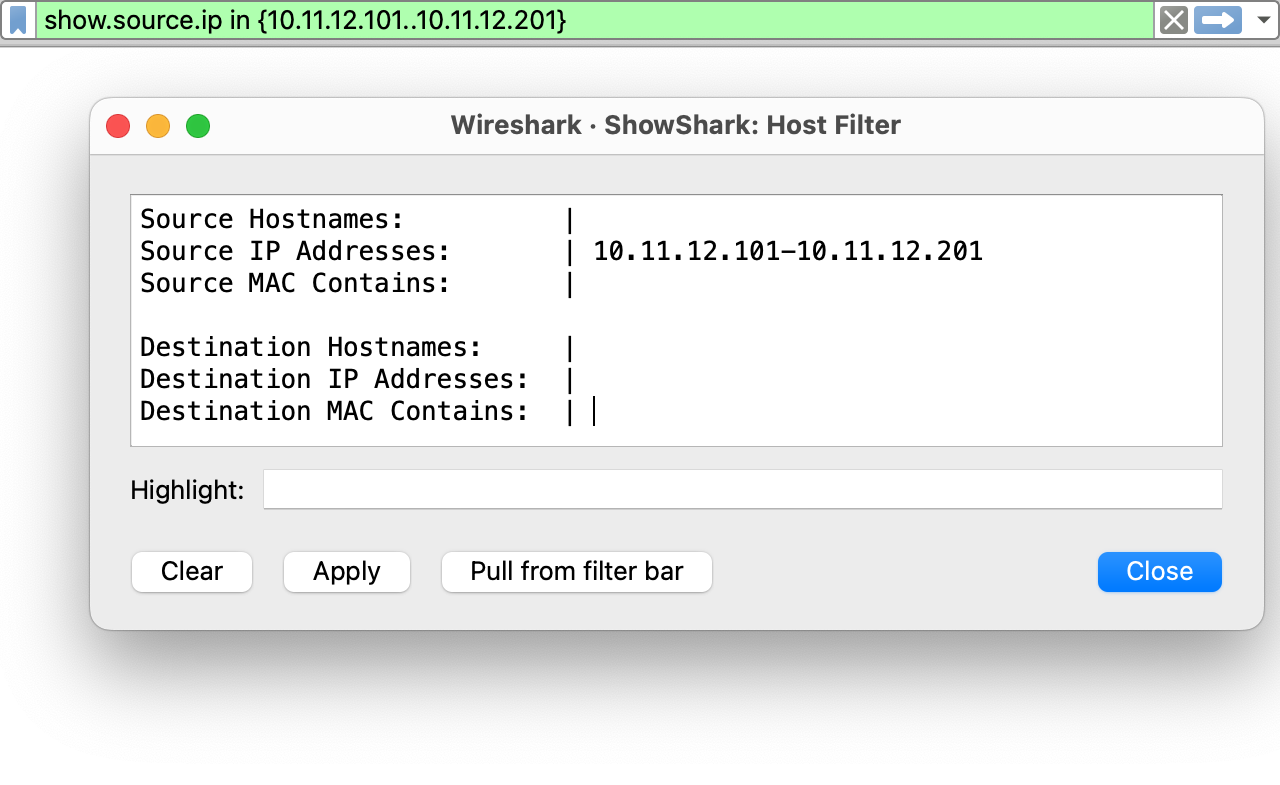
Multiple IP addresses:
Combine individual addresses and ranges, separated by commas.
MAC Address Filtering
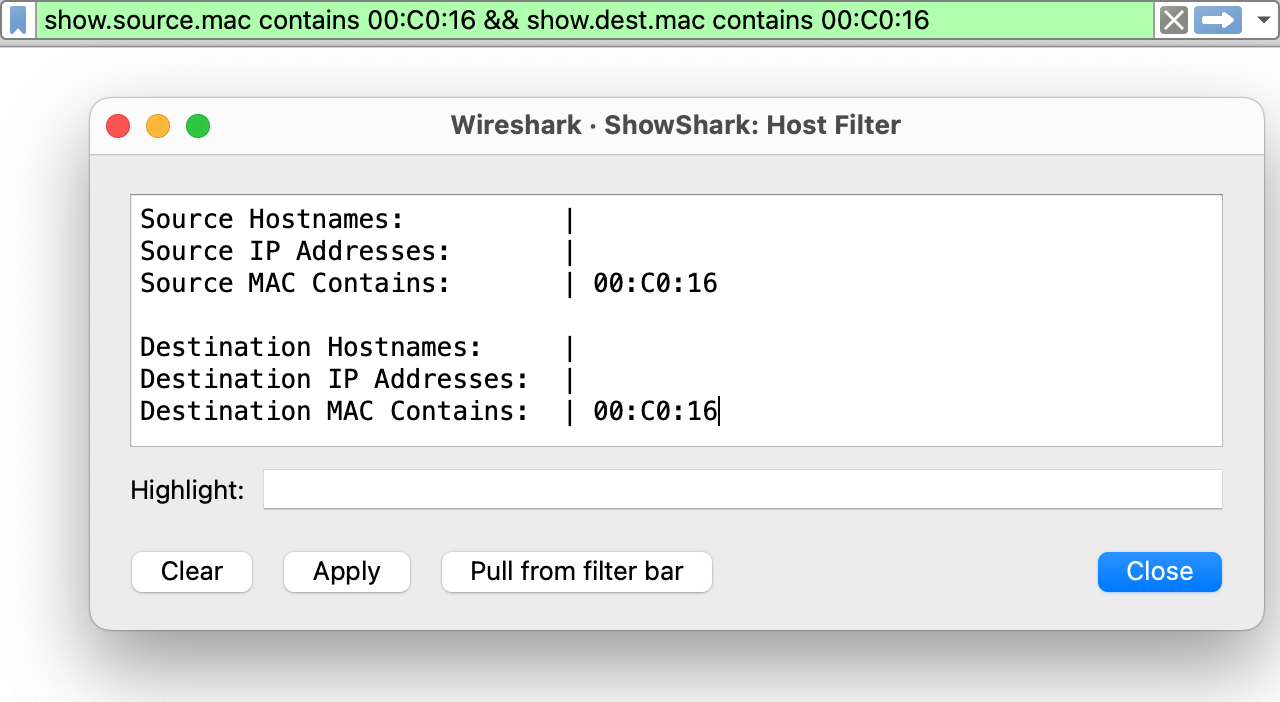
Enter a full or partial MAC address. You can separate multiple entries with commas.
Combining Host Filters
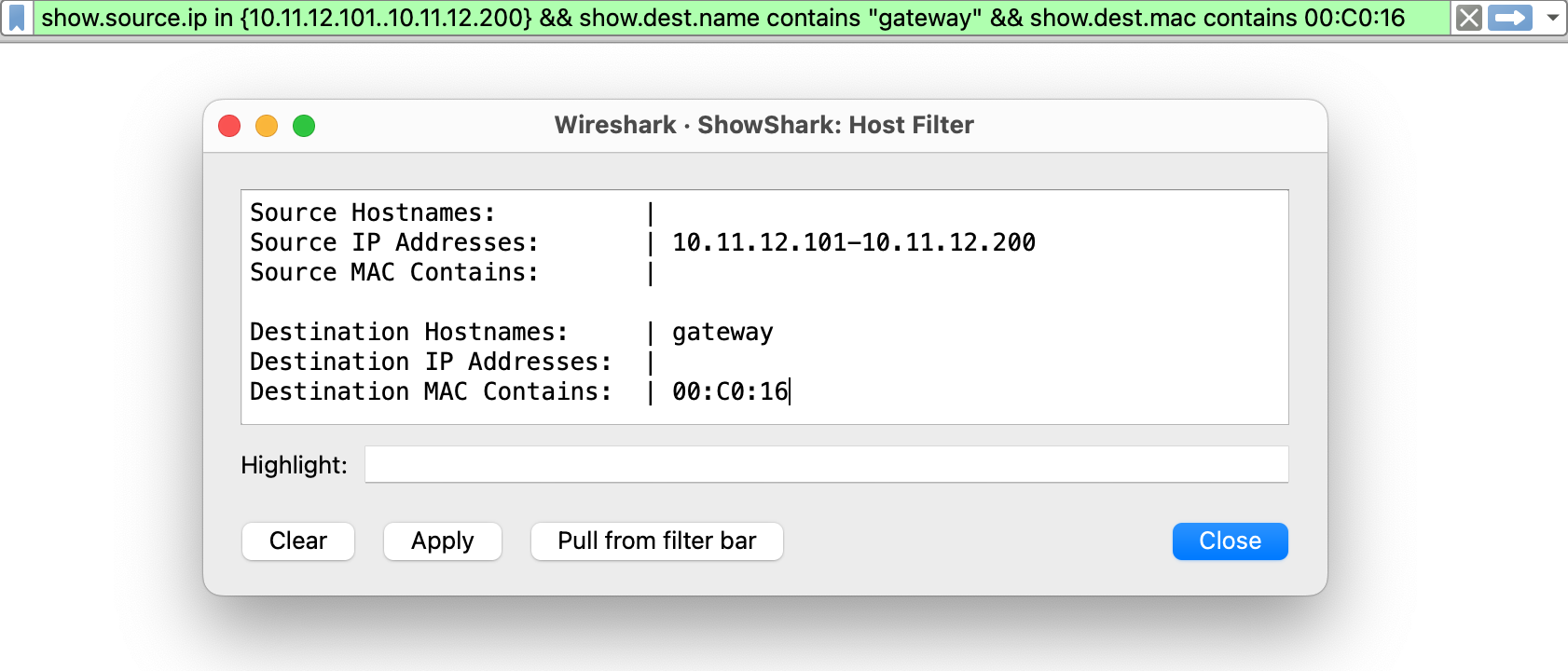
You can combine hostname, IP address and MAC address filters across the source and destination fields.
Manufacturer Filters
Manufacturer filters show traffic to or from devices that ShowShark has identified as the selected manufacturer.
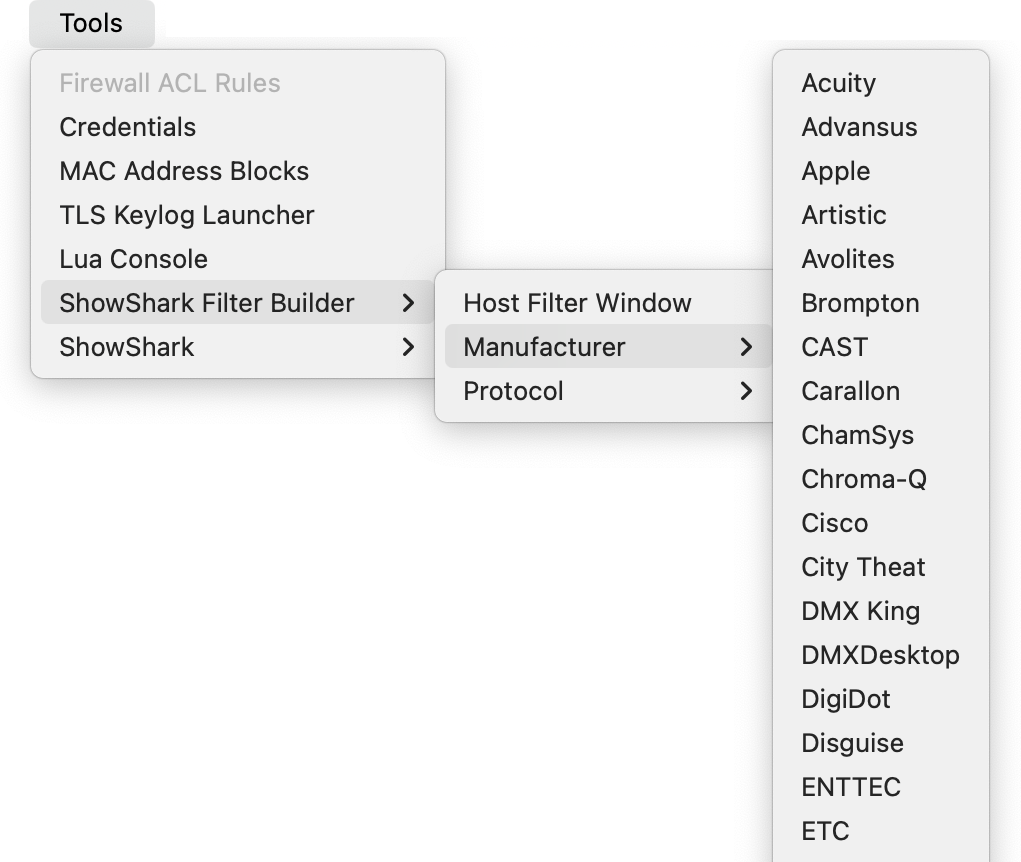
Selected manufacturers appear in Wireshark’s display filter bar.

Manually editing manufacturer filters in the display filter bar may not update the Filter Builder correctly. See Manual Editing.
Protocol Filters
The Protocol menu includes entertainment and general network protocols, with submenus for more specific options such as DMX and OSC.
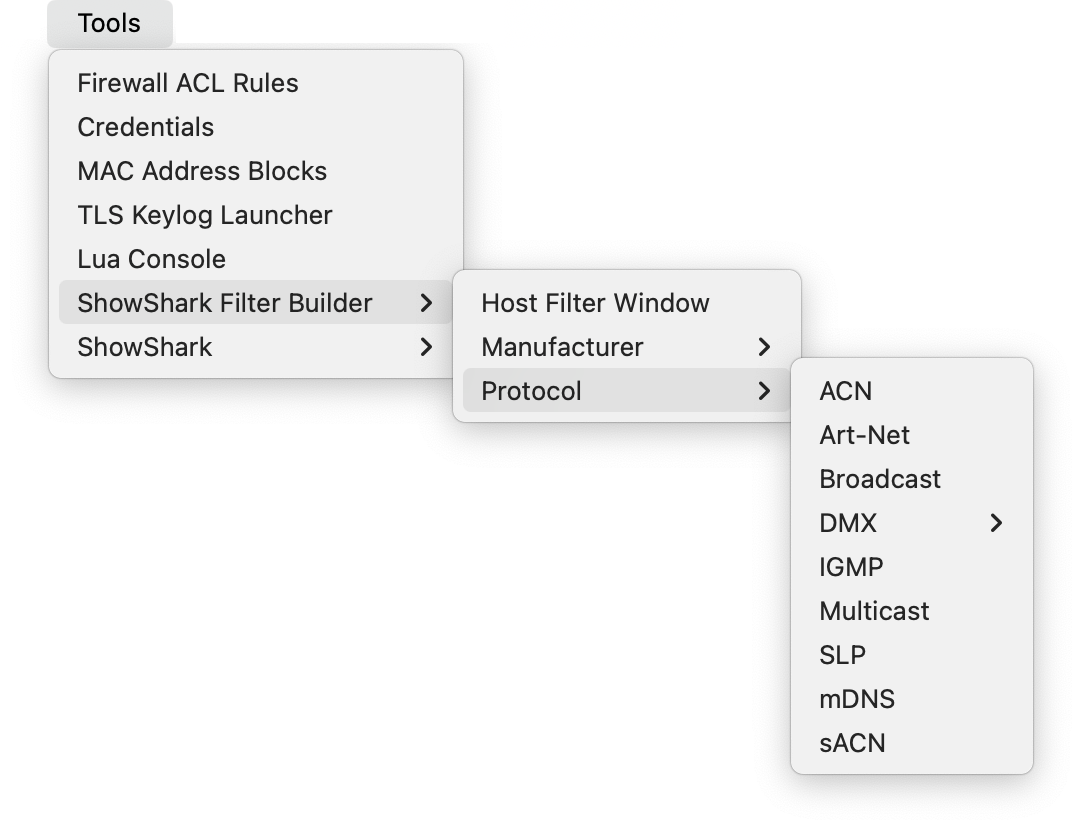
Manually editing protocol filters in the display filter bar may not update the Filter Builder correctly. See Manual Editing.
sACN Protocol Filter
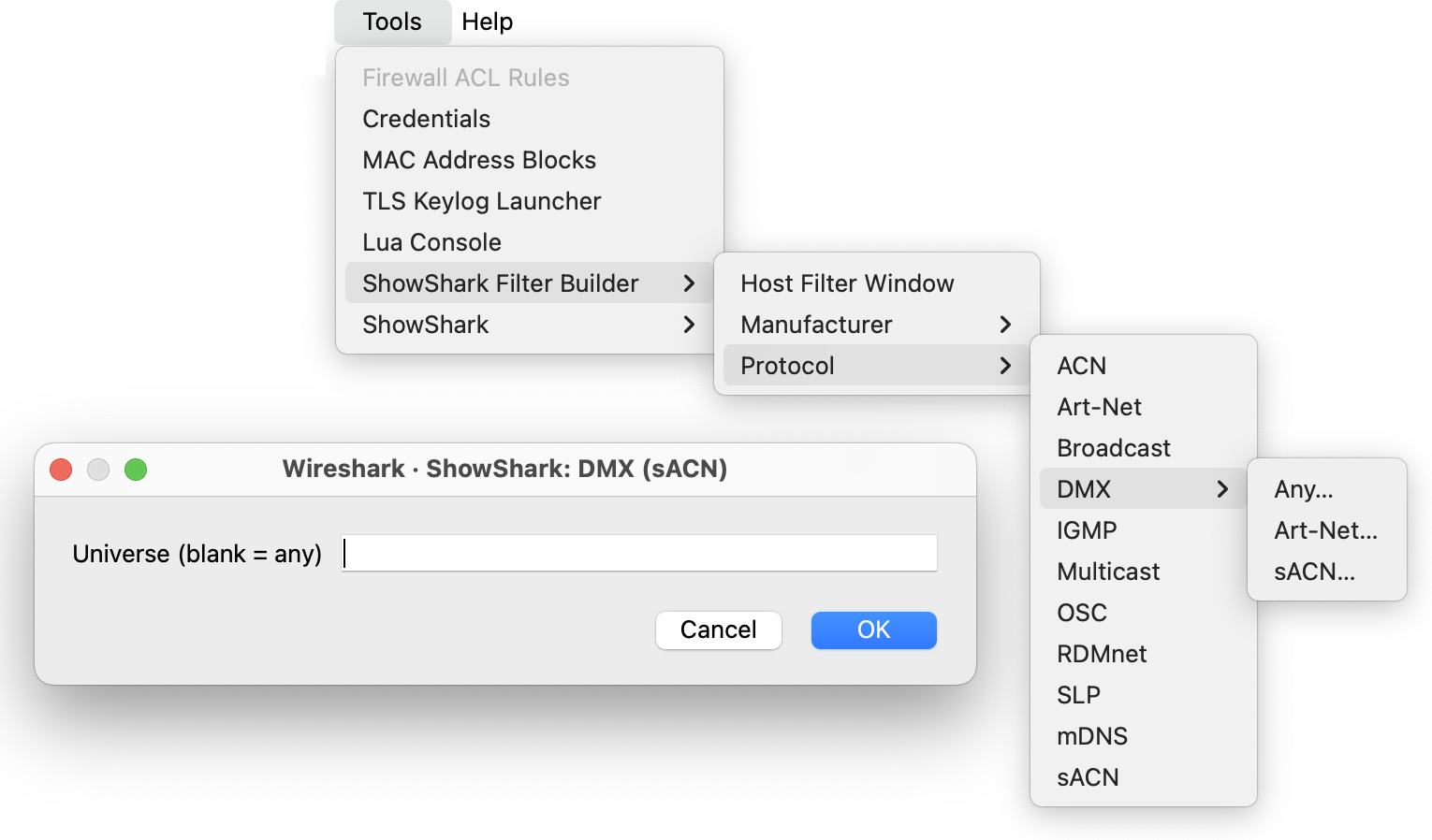
Universe Filter

Manual Editing
You can use the syntax that Filter Builder creates as a starting point and edit it directly when you need more control over the filter logic or need to work around a known issue.
Click in the display filter bar to edit the filter. You can remove conditions, change and to or, or edit IP ranges, port numbers and hostnames. Press Enter to apply the filter. Wireshark highlights invalid filters in red.
To clear the display filter bar, click the X on the right, or delete all the text and press Enter.
See Common Filters for more filter examples.