Menus
ShowShark adds a menu under Tools > ShowShark in Wireshark, making it easy to access plugin features and settings.
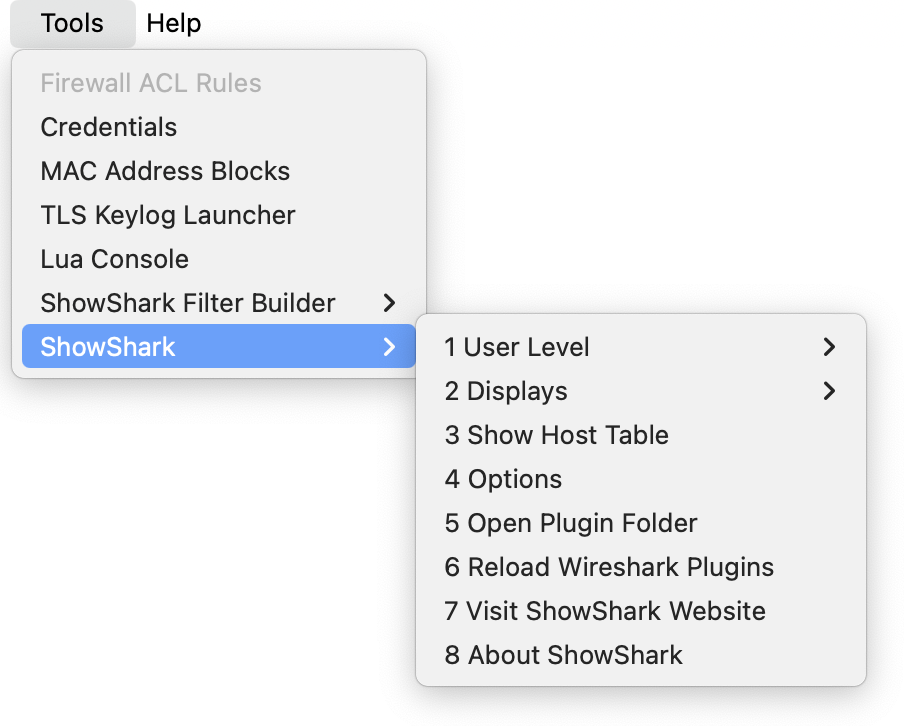
1. User Level
ShowShark offers two display levels:
Essential
- Simplified view with key protocol details and host information.
- Host Protocols and Host Properties are hidden by default for a cleaner interface.
- The Host Table can still be opened via Tools > ShowShark > Show Host Table.
Advanced
- Adds more protocol fields and details to the packet list and window.
- Host Protocols and Host Properties are shown by default.
- The Host Table includes extra columns and counters.
- You can switch back to Essential at any time.
2. Displays
The Displays submenu provides quick access to reset display settings:
Reset Columns
Resets the packet list columns to the Showshark default settings. See the Columns page for more information.
Reset Colours
Resets the packet list colouring rules to the ShowShark default colour rules.
3. Show Host Table
Opens the Host Table window displaying all discovered devices and their properties. See the Host Table page for detailed information.
4. Options
Display Level
- Set the default display level to Essential or Advanced.
- Change the display level from the main window or via Tools > ShowShark > User Level.
- The Apply button applies changes without closing the dialog.
Attach Host Property Table
- Controls whether the Host Properties table appears in the packet details by default.
- Independent of display level.
- When disabled, the Host Properties table is hidden, but host information is still available via the Host Table.
- The Apply button updates the view without closing the dialog.
Attach Host Protocol Table
- Controls whether the Host Protocols table appears in the packet details by default.
- Independent of display level.
- When disabled, the table is hidden, but protocol information is still available via the Host Table.
- The Apply button updates the view without closing the dialog.
Open About Dialog at Startup
- Toggles whether the About window opens when Wireshark starts or when the plugin is reloaded.
5. Open Plugin Folder
Opens the folder where the ShowShark plugin files are located, making it easy to:
- Update the plugin.
- View or manage plugin resources.
6. Reload Wireshark Plugins
Reloads all Lua plugins in Wireshark without restarting the application. Useful after:
- Updating the ShowShark plugin.
- Installing additional plugins.
7. Visit ShowShark Website
Opens the ShowShark website in your default browser for:
- Come here!
8. About ShowShark
Displays information about the current ShowShark version, including:
- Version number.
- Release information.
- Credits and license details.