Filter Builder
Known Issue: Protocol and manufacturer filters are currently experiencing some bugs which may require you to manually edit the display filter bar to achieve the desired result. See Manual Editing below for guidance.
What are Filters?
Filters in Wireshark allow you to narrow down the packets displayed to only those that match specific criteria. Instead of viewing thousands of packets, you can focus on specific hosts, protocols, manufacturers, or other characteristics. ShowShark’s filter builder makes it easy to create these filters without needing to memorize Wireshark’s filter syntax.
Filters are temporary and non-destructive—they only change what you see, not what’s in your capture file. You can apply, remove, or modify filters at any time.
Filter Builder Overview
ShowShark includes a filter builder under Tools > ShowShark Filter Builder… to help create Wireshark display filters without needing to know the full filter syntax.
The filter builder works with your current display filter and does not automatically apply changes. You must apply the filter manually in Wireshark by pressing Enter or clicking the Apply button.
How the Filter Builder Works
The filter builder adds conditions to the existing display filter rather than replacing it. This allows you to build complex filters step by step:
- New conditions are combined with existing filters using and
- Multiple selections within the same category are grouped using or
- The resulting filter is written to the display filter bar for review or further editing
- Filters are not automatically applied—you must apply them manually in Wireshark
Pro Tip: The filter builder is great for learning Wireshark’s filter syntax. Build a filter visually, then examine the generated syntax in the display filter bar to understand how it works.
Host Filters
The Host Filters option is the first menu item and opens a window for building filters based on source and destination hosts. This is one of the most commonly used filtering options.
To access Host Filters:
Go to Tools > ShowShark Filter Builder… in Wireshark:
How Host Filters Work
The Host Filter window allows you to filter packets based on:
- Host names (device names detected by ShowShark)
- IP addresses (individual, ranges, or comma-separated lists)
- MAC addresses (full or partial addresses)
You can specify criteria for source hosts, destination hosts, or both:
- Within the same field, multiple values are combined using or
- Between different fields (source vs. destination), filters are combined using and
Host Name Filtering
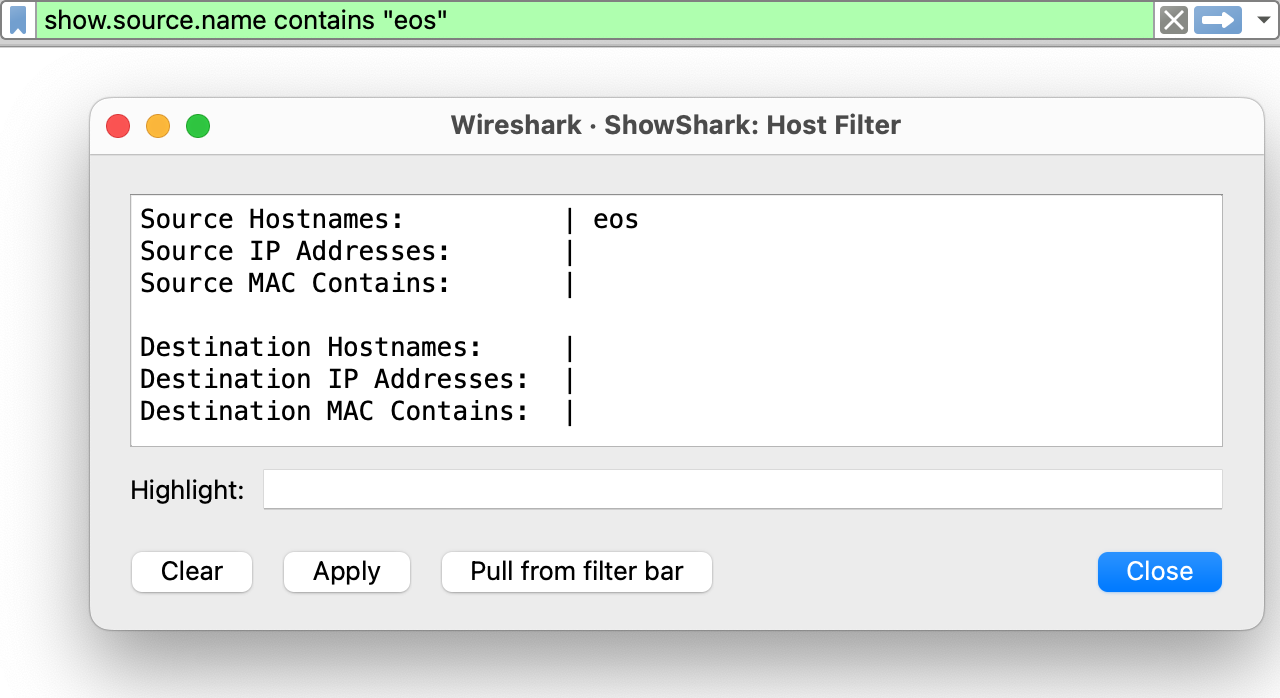
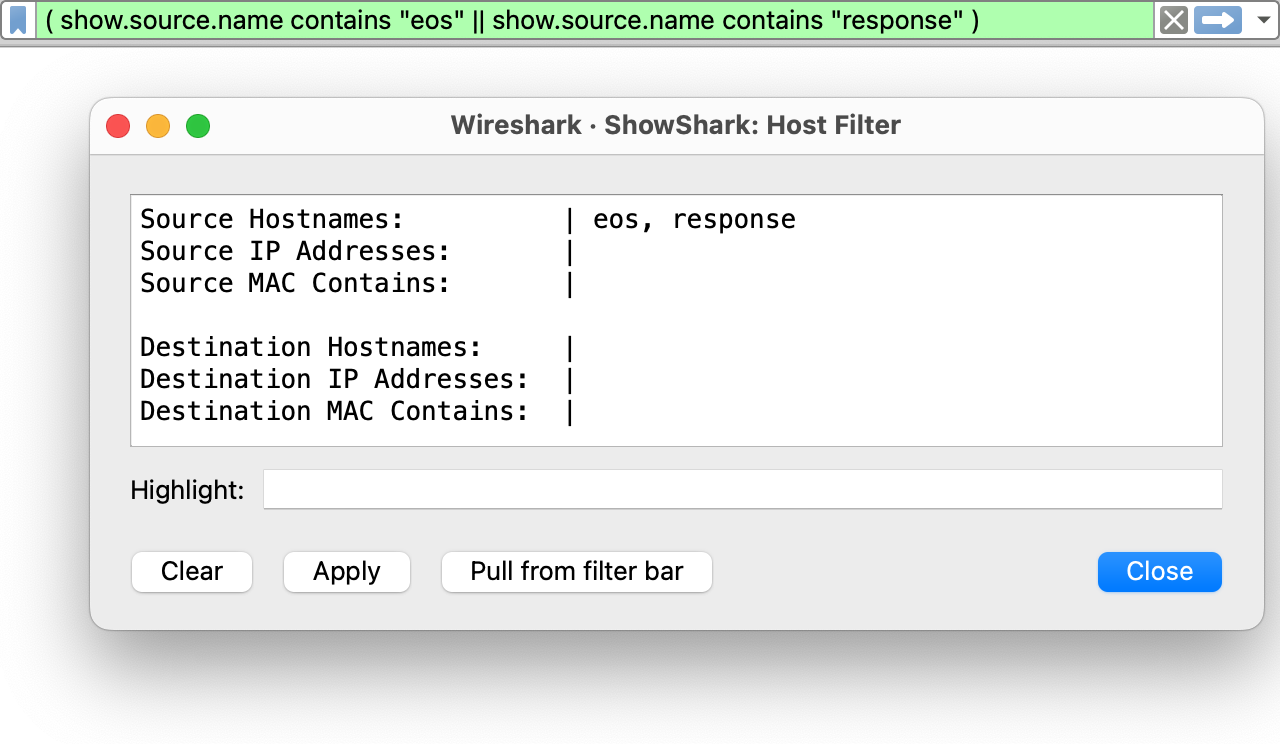
Host names use contains matching, which means the filter will match any host whose name contains the text you enter. You can enter multiple host names separated by commas.
Example: Filtering for EOS consoles:
IP Address Filtering
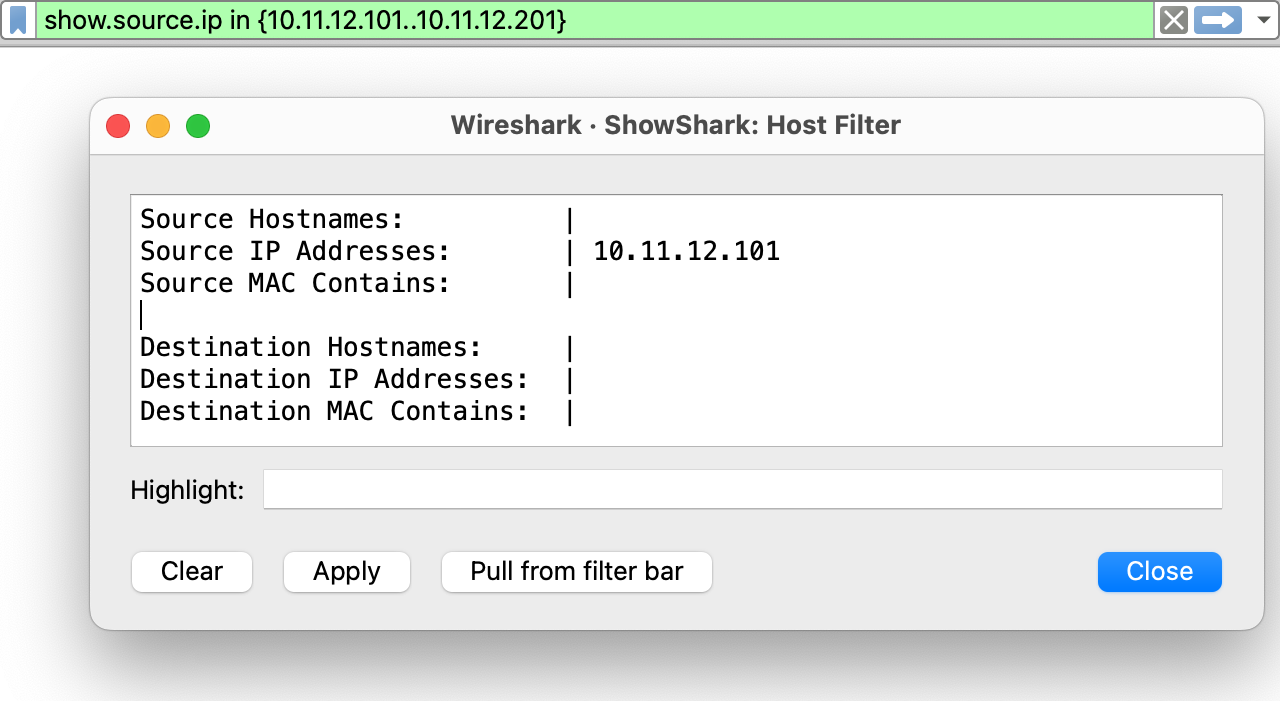
IP addresses can be specified in several ways:
Single IP address:
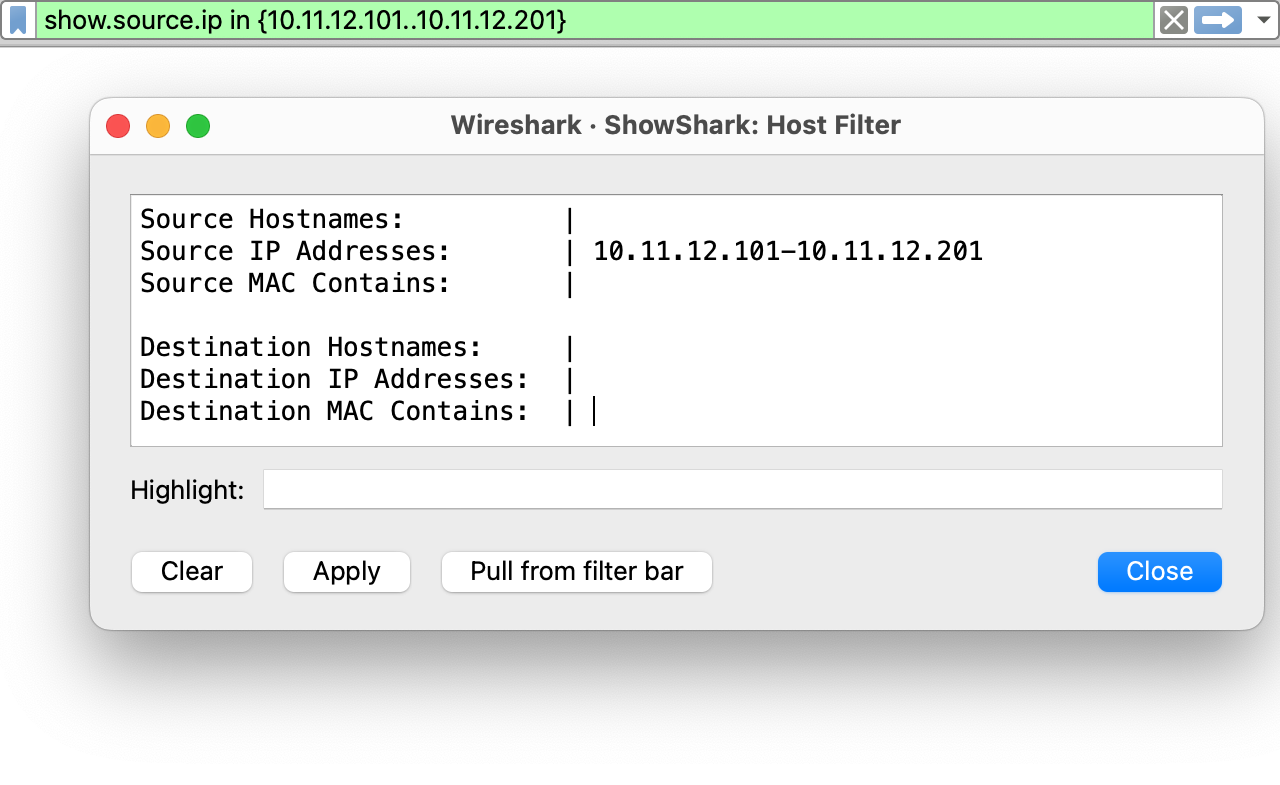
IP address range:
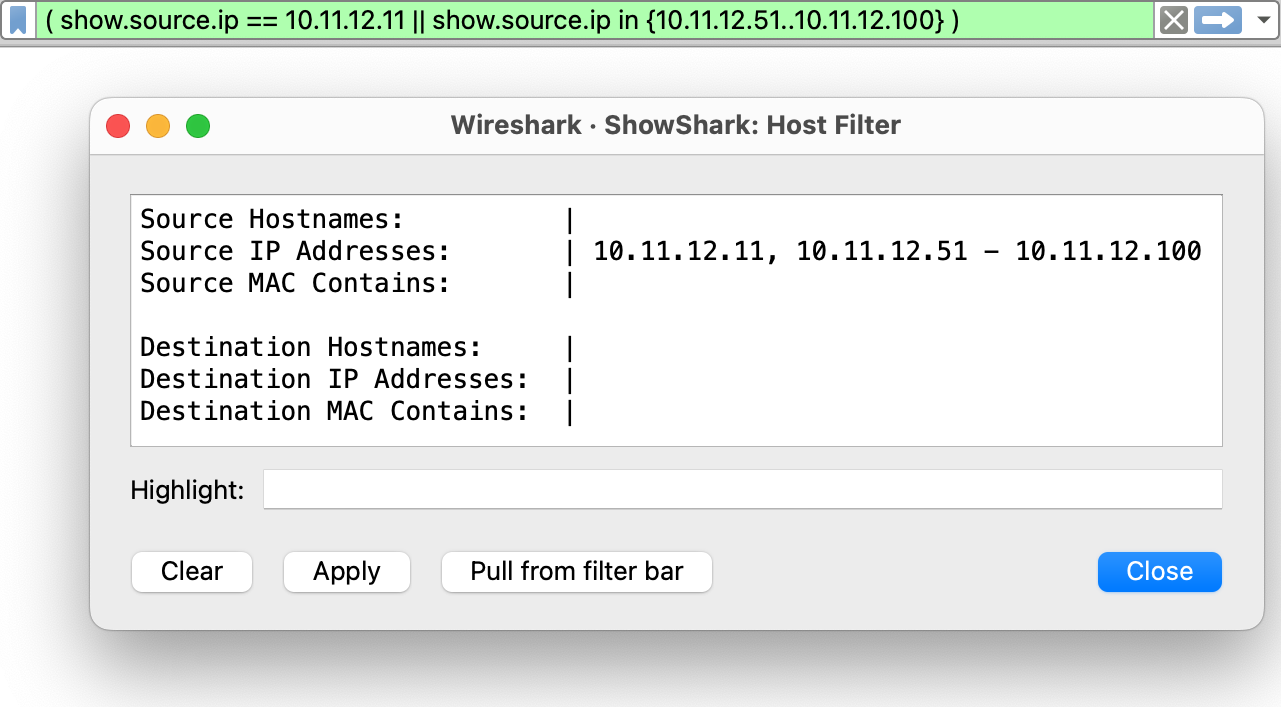
Use the format 10.101.10.6–10.101.10.9 to specify a range:
Complex IP filtering:
Combine individual IPs, ranges, and comma-separated lists:
MAC Address Filtering
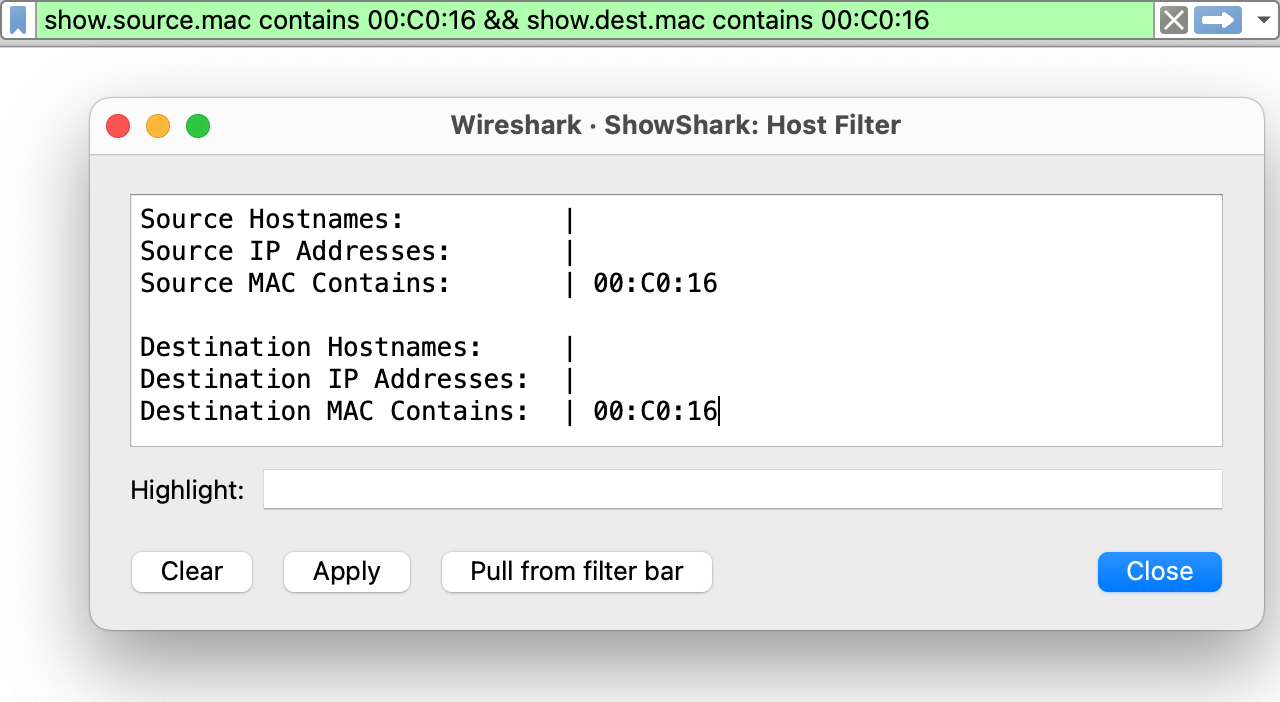
MAC addresses support contains matching, comma-separated values, and partial MAC fragments. This is useful when you know the manufacturer portion of the MAC address or want to filter by partial matches.
Complex Host Filters
You can combine multiple host filter criteria to create sophisticated filters. Here’s an example of a complex filter using multiple fields:
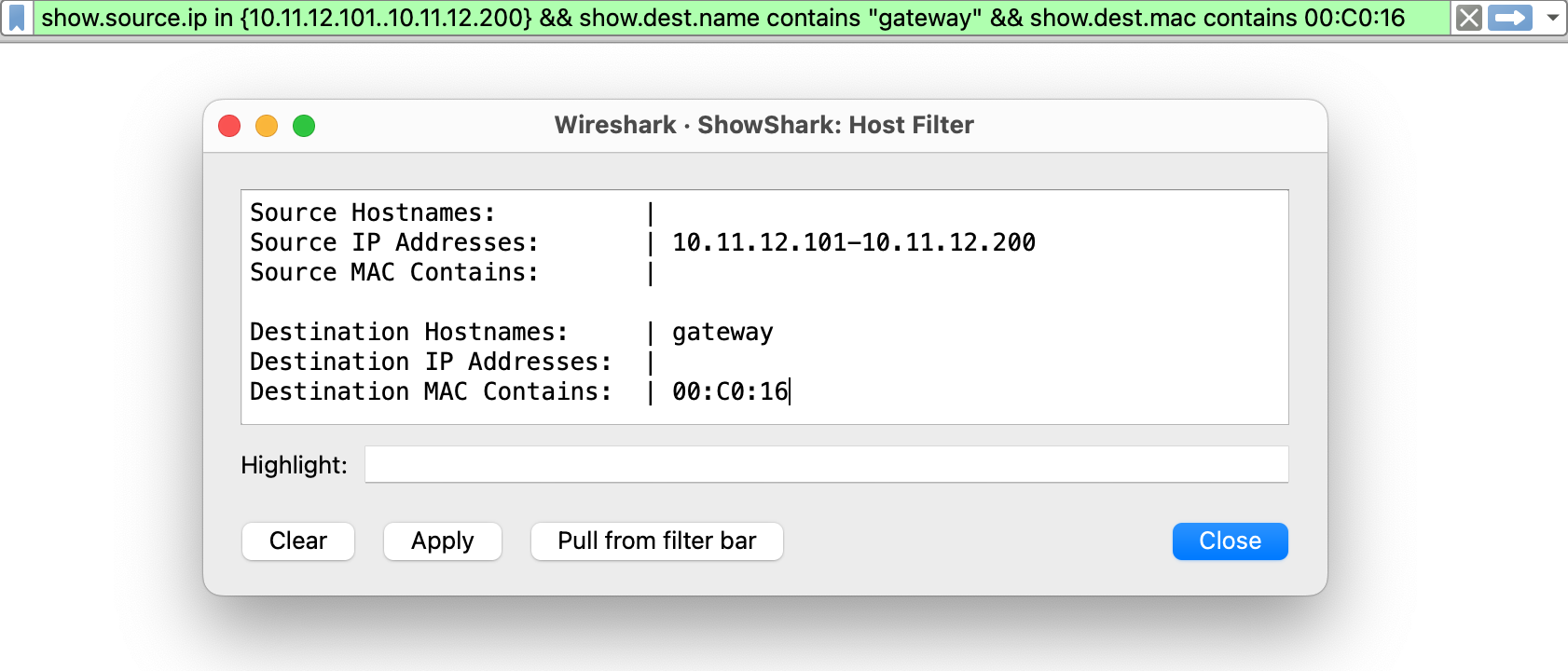
Remember: The same filtering rules apply to both source and destination host fields. When applied, the generated filter is written to the display filter bar and can be edited manually.
Manufacturer Filters
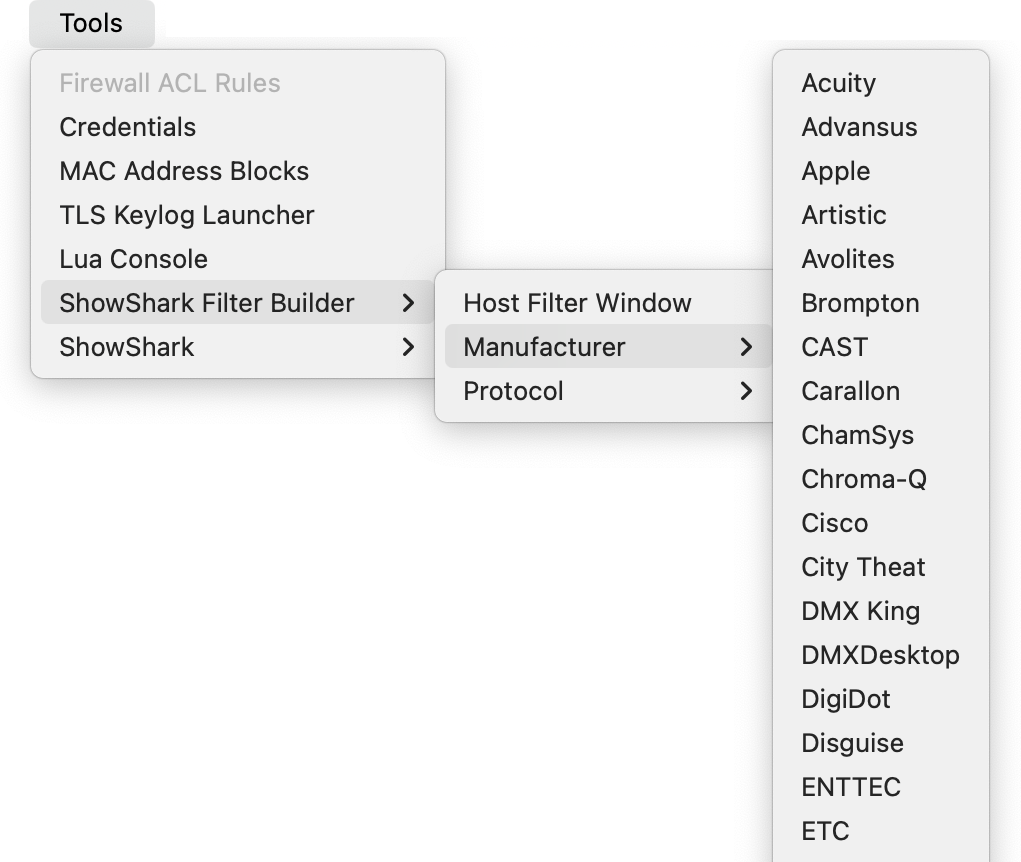
The Manufacturer option opens a list of manufacturers that can be added to the display filter. This allows you to filter packets based on the device manufacturer, which ShowShark determines from MAC addresses.
To access Manufacturer Filters:
How Manufacturer Filters Work
When you select a manufacturer:
- If no manufacturer is currently selected, it’s added to the current filter using and
- If multiple manufacturers are selected, they are grouped together using or
- The filter matches either the source or destination host manufacturer

Known Issue: Manufacturer filters may require manual editing of the display filter bar. See Manual Editing below for guidance.
Manufacturers can be removed by manually editing the display filter bar. See the Manual Editing section below.
Protocol Filters
The Protocol option opens a list of protocols that can be added to the display filter. This is useful for focusing on specific network protocols used in entertainment networks.
To access Protocol Filters:
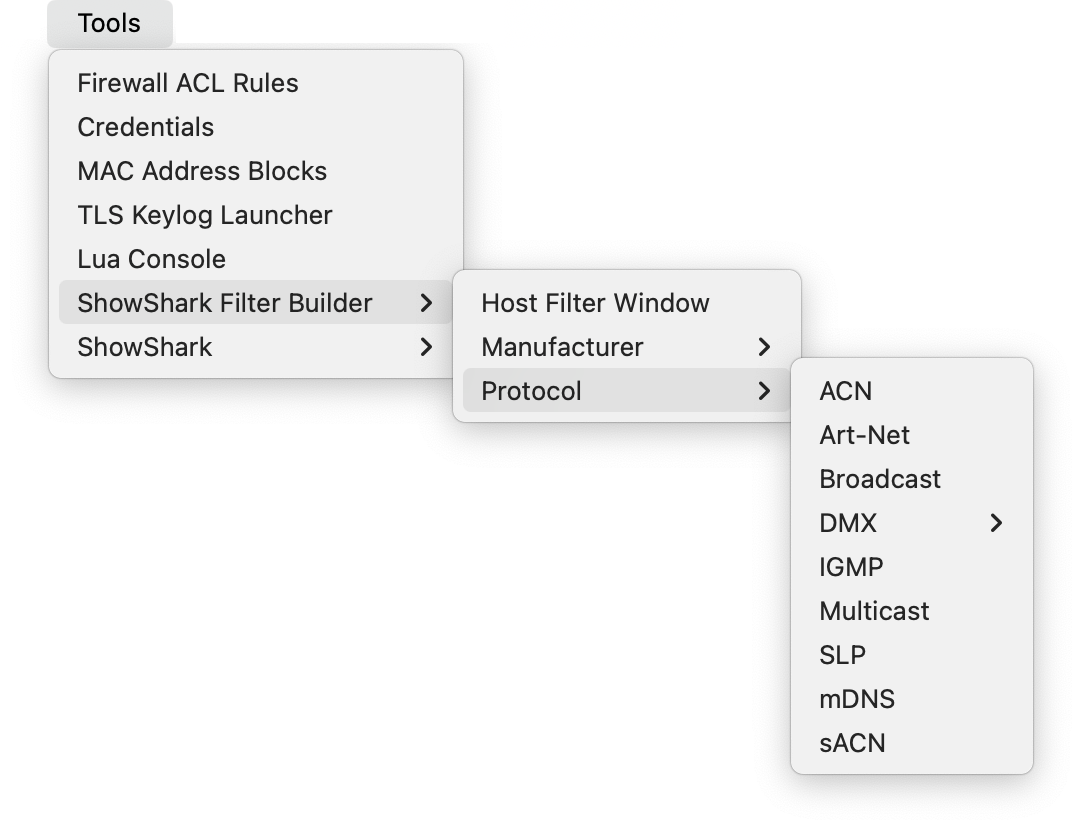
How Protocol Filters Work
When you select a protocol:
- If no protocol is currently selected, it’s added to the current filter using and
- If multiple protocols are selected, they are grouped together using or
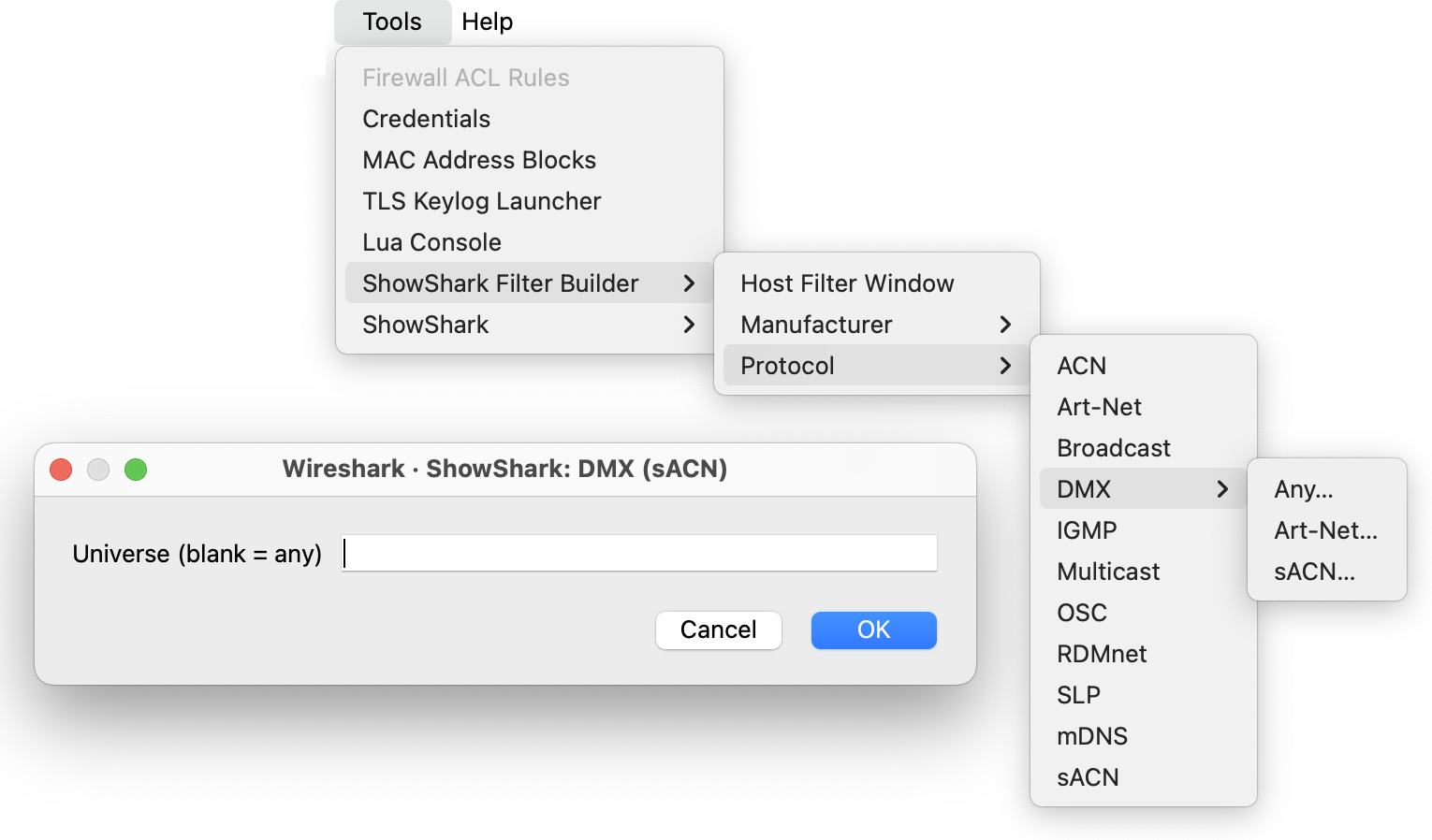
- Some protocols (such as DMX) include sub-menus that allow more specific protocol variants to be selected
Known Issue: Protocol filters may require manual editing of the display filter bar. See Manual Editing below for guidance.
Tip: When using protocol filters, start with broader protocol categories and narrow down using the sub-menus for more specific filtering.
Protocols can be removed by manually editing the display filter bar. See the Manual Editing section below.
Manual Editing of Filter Bar
All filters generated by the filter builder appear in Wireshark’s display filter bar and can be manually edited or refined as needed. This is particularly useful when:
- The filter builder produces unexpected results
- You need more precise control over filter logic
- You’re working around known bugs in manufacturer or protocol filters
You can always edit the generated filter directly in the display filter bar. The filter builder provides a good starting point that you can refine manually.
Editing Filters
To clear the filter:
- Click the X button on the right side of the display filter bar, or
- Select all text in the filter bar and delete it, or
- Use the keyboard shortcut
Cmd+AthenDelete(macOS) orCtrl+AthenDelete(Windows/Linux)
Tips for manual editing:
- Filters use logical operators:
and,or,not - Use parentheses
()to group conditions and control precedence - Wireshark will highlight syntax errors in red if your manual edits are invalid
- The filter builder provides valid syntax that you can study and modify
- You can combine filter builder output with hand-written filters
Common Manual Edit Scenarios
Removing a condition: Delete the unwanted portion and the connecting and or or operator.
Adding negation: Use not or ! before a condition to exclude it. For example: not tcp.port == 80
Changing operators: Replace and with or (or vice versa) to change filter logic.
Refining ranges: Manually adjust IP ranges or port numbers that the filter builder created.
Examples
Here are some examples of filters created with the filter builder:
sACN Protocol Filter
Universe Filter
