Menus
Tip: When experimenting with settings, use a small capture file. Wireshark re-processes the entire capture whenever a setting changes, so the larger the file, the longer the wait.
ShowShark adds a menu under Tools > ShowShark in Wireshark, making it easy to access plugin features and settings.
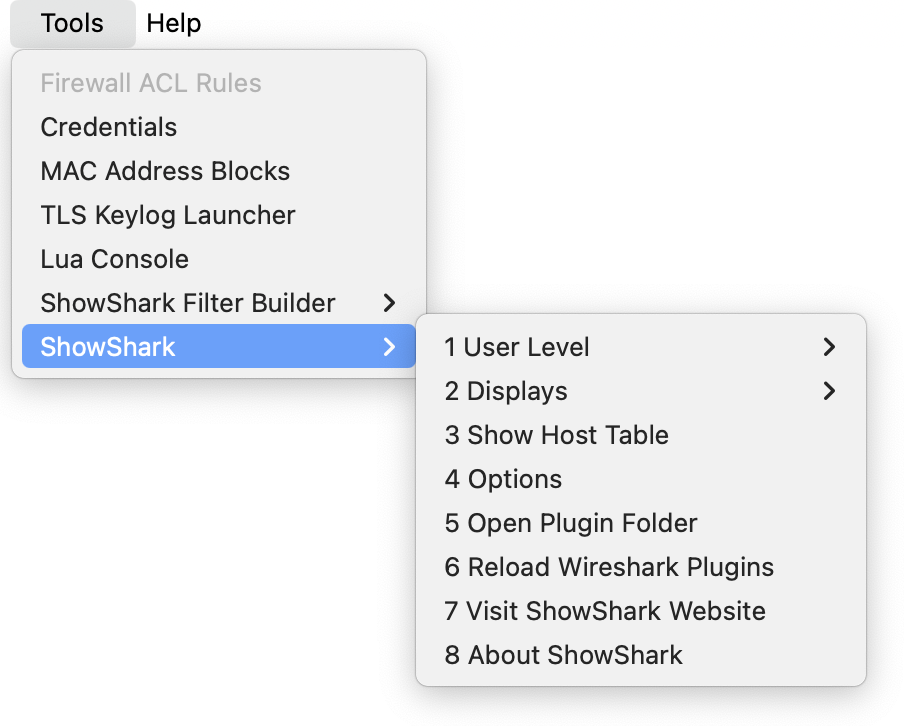
1. User Level
ShowShark offers two display levels:
Essential
Essential is the default display level, designed to provide a clean and simple view of the most important information to get you started.
Advanced
Advanced provides a more detailed view with additional details and information.
2. Displays
The Displays submenu provides quick access to display settings.
The first option resets the packet list columns to the ShowShark defaults (currently tailored toward lighting). You can customise these at any time. See the Columns page for more detail.
There are also three colour filter options to help visually distinguish different types of traffic. Colour filters are purely cosmetic; pick whichever you find most readable.
3. Show Host Table
This opens the Host Table window, displaying all discovered devices and their properties. See the Host Table page for more detail.
4. Options
This opens the Options dialog where you can configure various ShowShark settings. You can’t break anything from this window; however, most of the useful settings can be accessed from the menus anyway.
The dialog gives explanations of each setting and the options available.
5. Open Plugin Folder
This opens the folder where any additional files for ShowShark live (this may be empty).
6. Reload Wireshark Plugins
This reloads all Lua plugins in Wireshark without restarting the application. You’ll mainly need this when updating ShowShark.
7. Visit ShowShark Website
Come here!
8. About ShowShark
This displays information about the current ShowShark version, including release notes.