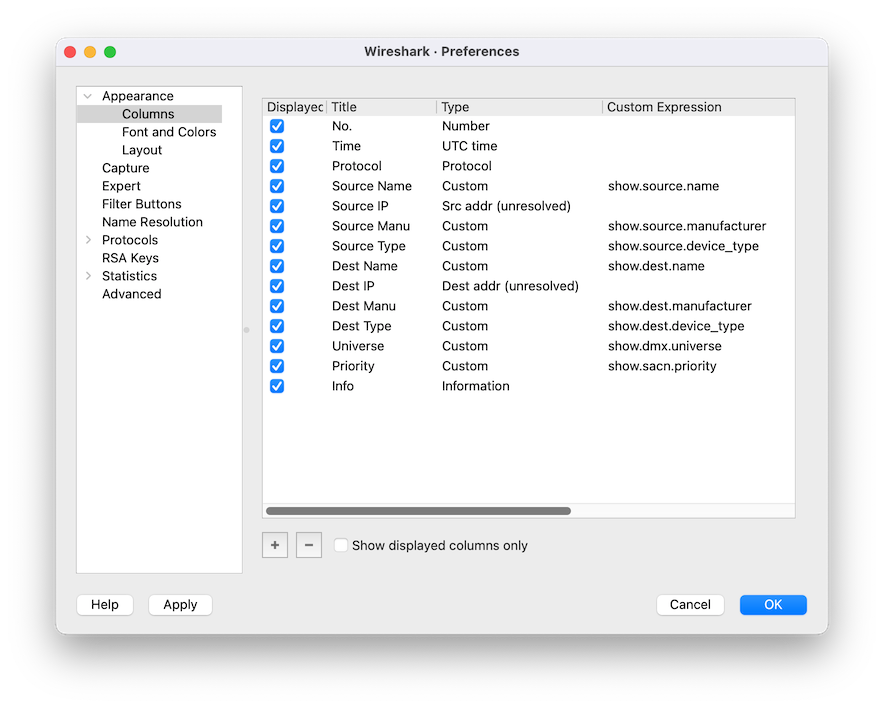
Columns
ShowShark adds extra informational fields to the packet list in Wireshark. These columns expose entertainment-specific information such as hostnames and universe numbers.
The columns are customisable; however, as a starter, use the default columns provided by ShowShark which are included in the ShowShark Configuration Profile.
To reset columns to ShowShark defaults: Go to Tools > ShowShark > 2 Displays > Reset Columns.
Editing Columns
There are two types of columns we need; default Wireshark columns and custom ShowShark columns.
- Right click any column header (where you see Time, Protocol, Info, etc.) in the packet list and choose Column Preferences.
- For now, clear all the columns by selecting each one and clicking the – button.
- Copy the format as per the screenshot, adding columns using the + button:
- For default Wireshark columns, set the Type to the appropriate type (for example Source for the source IP address).
- For ShowShark columns, set the Type to Custom and enter the field name (for example
show.source.namefor Source Name).
- You can reorder columns using the Up / Down buttons.
- Click OK to apply the changes.
In the Column Preferences window: